Common Flexible LED Screen Problems and How to Fix Them
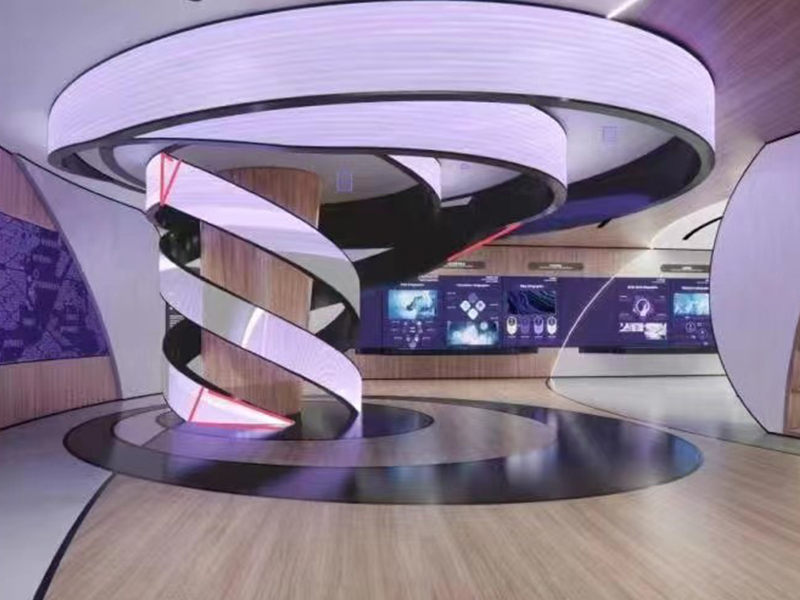
In recent years, flexible LED screens have rapidly gained market share and become a go-to solution for creative displays. You’ll see them everywhere—on curved building facades, immersive stages, transportation hubs, and retail environments.
However, like any advanced display system, flexible LED screens can run into technical issues during operation. If you don’t address these problems quickly, they can lead to downtime, poor performance, and even hardware damage.
This guide breaks down the most common flexible LED screen problems and shows you exactly how to troubleshoot them efficiently.
1. “Please Connect LED Display Controller” Error
What’s happening?
You install the LED control software and run it successfully at first. But after about 20 minutes, a message appears:
“Please connect LED display controller.”
Why it happens
This usually occurs because the software is running in trial mode and cannot detect the control hardware.
How to fix it
Follow these steps to establish a proper connection:
- Connect one end of the LED controller hardware to your computer
- Connect the other end to the HUB distribution board
- Link the HUB board to each LED module using ribbon cables
Then:
- Open the software
- Go to Settings → Screen Parameters
- Configure the correct display parameters
- Restart the software
Once done, you should see a “Connected Successfully” message. At this point, the system will run without time limits.
2. Bright Lines or “Glitch Screen” on Startup
What’s happening?
When you power on the system, the screen briefly shows:
- Bright lines
- Random noise patterns (“flower screen”)
Why it happens
This is normal behavior during system initialization. The controller runs a quick self-check before entering stable operation.
How to fix it
No action needed. Just make sure:
- The controller receives a stable +5V power supply
- You do NOT connect it directly to 220V AC
The screen will stabilize automatically within a few seconds.
3. Auto vs. Manual Brightness Adjustment
What’s the difference?
Auto Brightness
- The system adjusts brightness based on time schedules or ambient conditions
- Ideal for outdoor or day/night environments
- Reduces power consumption and glare
Manual Brightness
- You set a fixed brightness level via the control system
- Useful for controlled indoor environments like studios or exhibitions
Key insight
Brightness adjustment refers to the range between minimum and maximum luminance, not sensor-based light detection unless configured.
4. Controller Works Fine, But No Display Output
What’s happening?
Everything seems properly connected, but the screen shows nothing.
Likely causes and fixes
Check the following step by step:
- Power supply
- Ensure the LED screen is powered on
- HUB board connections
- Verify that ribbon cables are not reversed
- Content issues
- Confirm that you actually sent content to the screen
- Make sure the program is not empty
Pro tip
This issue often comes down to signal flow errors, not hardware failure. Always validate the content pipeline first.
5. Entire Module Not Lighting or Appears Dim
What’s happening?
A full LED module:
- Does not light up at all
- Appears unusually dim
How to diagnose and fix
Step 1: Visual inspection
- Check power cables
- Inspect 26-pin ribbon cables
- Confirm indicator lights on the power supply
Step 2: Measure voltage
Use a multimeter to check:
- Input voltage to the module
- Output voltage from the power supply
Step 3: Identify the issue
- No voltage output → Replace power supply
- Low voltage → Adjust trim potentiometer
The adjustment knob is typically located near the indicator light on the power module.
Conclusion: Reduce Downtime with Structured Troubleshooting
Flexible LED screens offer unmatched design freedom, but they also require systematic troubleshooting when issues arise.
To minimize downtime:
- Always verify power → signal → content flow in that order
- Use proper measurement tools like a multimeter
- Avoid guesswork—diagnose step by step
- Keep spare power modules and cables on hand
By following these best practices, you can quickly isolate faults, restore performance, and keep your LED display running at full efficiency.