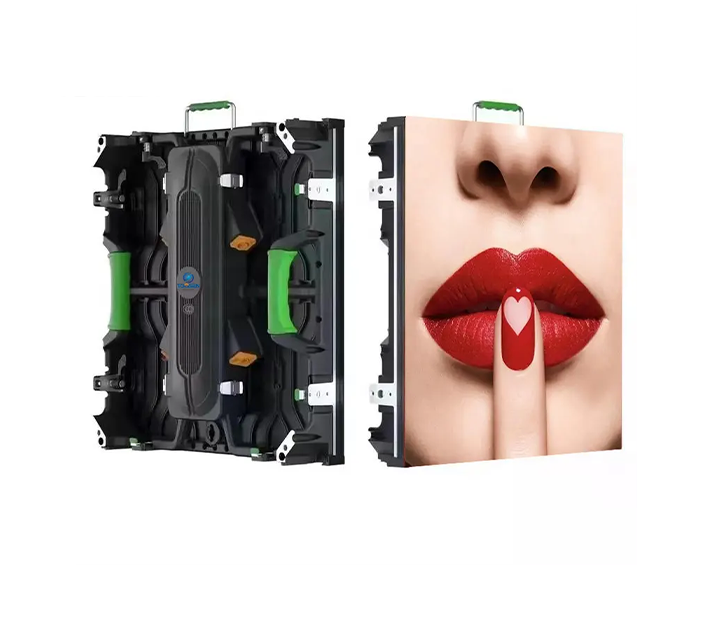
P1.953 Rental LED Display
Product name: Rental LED Display /Stage LED Screen / LED Video wall Ap...
View Details →Understanding the Operational Environment of Data Center LED Displays Data centers represent one of the most demanding environments for LED display technology. These facilities require constant monitoring of server statu...
Data centers represent one of the most demanding environments for LED display technology. These facilities require constant monitoring of server status, network traffic, power usage, and cooling systems, often through wall-mounted video walls or large-format displays. The typical LED display in a data center operates with a pixel pitch between 1.2 mm and 2.5 mm, ensuring sharp text and detailed graphics at viewing distances of 2 to 5 meters. Brightness levels are usually set between 400 and 600 nits to prevent eye strain during long shifts, though high ambient light conditions may require up to 800 nits. Power draw for a standard 1.9 mm pixel pitch cabinet measuring 500 mm by 500 mm is approximately 120 to 150 watts per cabinet, with total system power varying based on size and content. Understanding these baseline specifications is critical before troubleshooting, as deviations often point to specific hardware or configuration issues. The display must also maintain a refresh rate of at least 1920 Hz to eliminate flicker, which is essential for prolonged viewing in control rooms. IP ratings for indoor data center installations are typically IP30, though front-facing IP40 or IP50 may be used in environments with higher particulate matter from cooling fans. Any troubleshooting guide must begin with verifying that the display meets these operational parameters, as mismatches between the display and the environment are a common source of problems.
The most frequent issues with LED displays in data centers include dead pixels, color inconsistencies, flickering, and partial module failures. Dead pixels, where individual LEDs fail to illuminate, are often caused by static discharge or driver IC failure. A single dead pixel may be acceptable, but clusters of three or more require module replacement. Color inconsistencies, such as a green or red tint across one section, typically indicate a calibration error or a failing power supply. To diagnose, check the display controller software for color temperature settings; standard data center use is 6500K D65 white point. Flickering at low brightness levels (below 300 nits) can result from insufficient PWM frequency or a failing power supply module. Measure the refresh rate using a high-speed camera; if it drops below 1920 Hz, the sending card or receiver card may need replacement. Partial module failure, where a 16x16 or 32x32 pixel section goes dark, usually points to a loose ribbon cable or a damaged hub board. Perform a visual inspection of all cable connections, ensuring that flat flex cables are fully seated and free of bent pins. Use a multimeter to check the 5V DC output from the power supply unit; acceptable range is 4.9V to 5.1V. If voltage is low, replace the power supply immediately to prevent cascading failures across adjacent modules. Document each diagnostic step in a log, noting the time, display temperature, and ambient humidity, as these factors influence failure rates.
Power supply issues account for over 40% of all LED display failures in data center environments. The constant load from 24/7 operation accelerates capacitor aging, especially in power supplies rated below 200 watts. Begin by measuring input voltage at the display’s main breaker; it should be 110-120V AC or 220-240V AC depending on regional standards. Fluctuations beyond ±10% can cause intermittent shutdowns or brightness variations. Next, test the output of each power supply unit using a DC load tester. A healthy unit should deliver 5V DC ±0.25V under full load. If the voltage drops below 4.7V, the unit must be replaced. Pay close attention to the power draw per cabinet; for a 1.9 mm pixel pitch display, maximum draw is typically 250 watts per square meter. If actual draw exceeds this by more than 15%, there may be a short circuit in the LED matrix or a failing driver IC. Check all power cables for signs of heat damage or corrosion, particularly at connector points. Use a thermal camera to identify hot spots; any connector exceeding 60°C under normal operation indicates high resistance and requires immediate attention. Data center displays often use daisy-chained power, which can create voltage drop issues over long runs. For installations longer than 10 meters, consider using power injection cables every 2.5 meters to maintain stable voltage. Always replace damaged cables with shielded, UL-listed equivalents rated for at least 10A. After any power supply repair, recalibrate the display brightness and color uniformity to ensure consistent performance across all modules.
Modern data center LED displays rely on Ethernet-based signal transmission, typically using CAT6 or fiber optic cables. Signal loss or latency can cause image tearing, delayed updates, or complete blackouts. Begin by verifying the network connection between the display controller and the sending card. Use a cable tester to check for continuity and crosstalk; CAT6 cables should have less than 1 dB of insertion loss per 100 meters at 100 MHz. If using fiber optics, inspect the connectors for dust or scratches with a fiber inspection microscope. Clean any contaminated connectors with a lint-free wipe and isopropyl alcohol. Next, check the refresh rate synchronization between the sending card and receiver cards. For a 1920 Hz refresh rate, the network bandwidth requirement is approximately 1.2 Gbps per 4K resolution input. If the network switch does not support gigabit speeds or has high latency (above 5 ms), upgrade to a managed switch with QoS prioritization for video traffic. Common symptoms of network issues include horizontal lines across the display or intermittent flickering every few seconds. In such cases, check the packet loss rate using a ping test from the controller to the display; anything above 0.1% loss requires immediate investigation. Update the firmware on all receiver cards and the sending card to the latest version provided by the manufacturer. After firmware updates, reconfigure the display resolution to match the source output, typically 1920x1080 or 3840x2160 for data center dashboards. If using HDMI or DisplayPort inputs, ensure that the cable length does not exceed 15 meters for passive cables; use active optical cables for longer runs.
Data center cooling systems, while essential for server health, can create unique challenges for LED displays. High-velocity air from CRAC units can cause dust accumulation on LED modules, leading to overheating and reduced brightness. Over time, dust layers of just 0.1 mm can decrease light output by up to 20%. Install front-facing filters with a minimum rating of IP40 to protect the display. Temperature fluctuations are another concern; data centers often maintain 18-27°C, but rapid changes can cause thermal expansion in PCB boards. This can lead to solder joint cracks, especially in displays with pixel pitch below 1.5 mm. Monitor the display’s internal temperature using built-in sensors; if it exceeds 55°C, reduce ambient temperature or add supplemental cooling fans. Humidity levels should stay between 20% and 80% non-condensing. Low humidity below 20% increases static discharge risk, which can damage sensitive LED drivers. Install anti-static mats in front of the display and ground all equipment to a common earth point. Vibration from nearby server racks or cooling fans can cause loose connections over time. Use vibration-dampening mounts for the display structure and check all bolts quarterly. Additionally, ensure that the display’s viewing angle does not exceed 160 degrees horizontal, as wider angles may cause color shift in a control room setting. If the display is placed near an air vent, redirect airflow to avoid direct contact with the LED surface, which can cause uneven cooling and color temperature drift.
Software misconfiguration is a leading cause of display issues in data centers, often occurring after system updates or personnel changes. Begin by verifying the display controller software version and comparing it to the manufacturer’s latest release. Outdated software may not support the required resolution or refresh rate. Check the calibration files stored in the controller; if they are corrupted, the display will show incorrect colors or brightness. Recalibrate using a spectrophotometer, targeting a gamma of 2.2 and a color temperature of 6500K. For displays with pixel pitch 1.5 mm or smaller, use a 3x3 calibration matrix to correct for individual LED variations. Next, review the content source settings. Data center dashboards often use static images with small text; ensure that the display’s sharpness setting is between 50% and 70% to avoid aliasing. If text appears blurry, increase the resolution to match the native panel resolution, which for a 1.9 mm pixel pitch display is typically 256x256 pixels per module. Check the brightness curve; a linear curve is recommended for data center use to maintain consistent visibility across different lighting conditions. If the display is part of a multi-screen video wall, verify that bezel compensation is enabled and that all screens have identical brightness and color settings. Use a uniformity correction tool to match adjacent cabinets within a delta E of less than 2. Finally, enable automatic brightness adjustment based on ambient light sensors if available. This feature prevents eye fatigue during night shifts by reducing brightness to 200-300 nits. Document all configuration changes in a change log and schedule monthly software audits to prevent drift. If issues persist, perform a factory reset and reload the configuration from a verified backup.
Product name: Rental LED Display /Stage LED Screen / LED Video wall Ap...
View Details →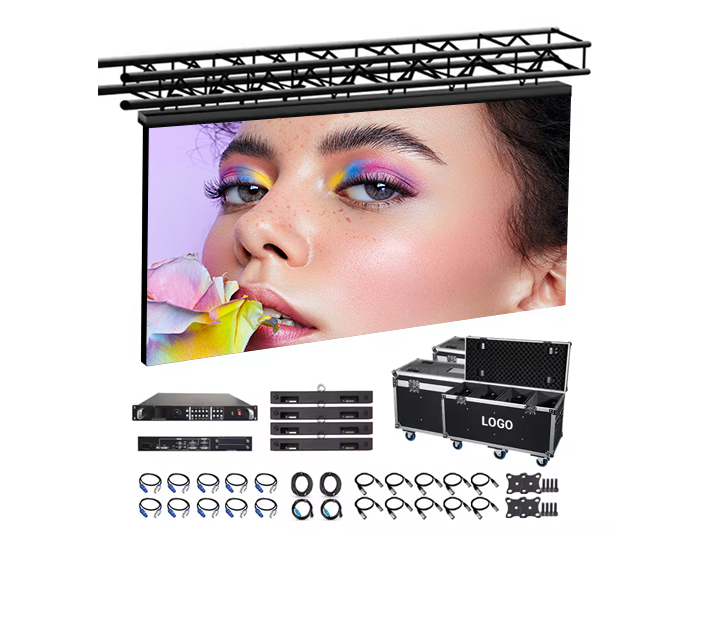
Product name: Rental LED Display /Stage LED Screen / LED Video wall Ap...
View Details →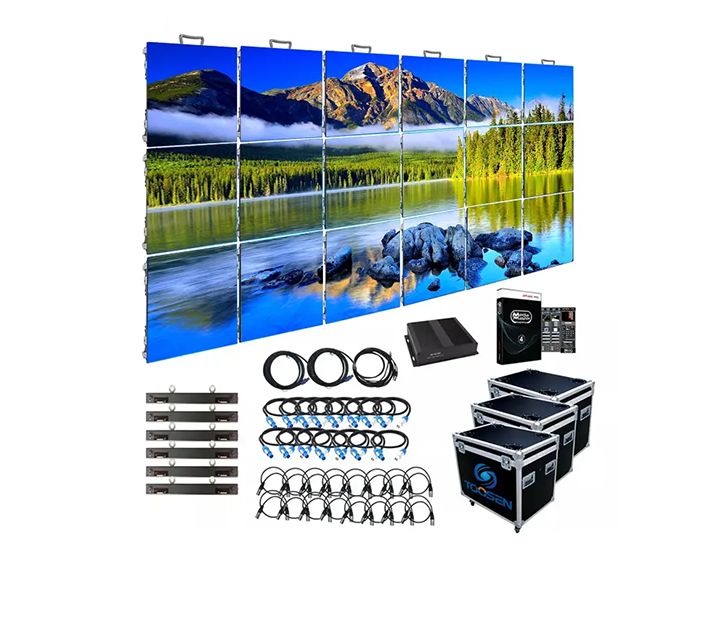
Product name: Rental LED Display /Stage LED Screen / LED Video wall Ap...
View Details →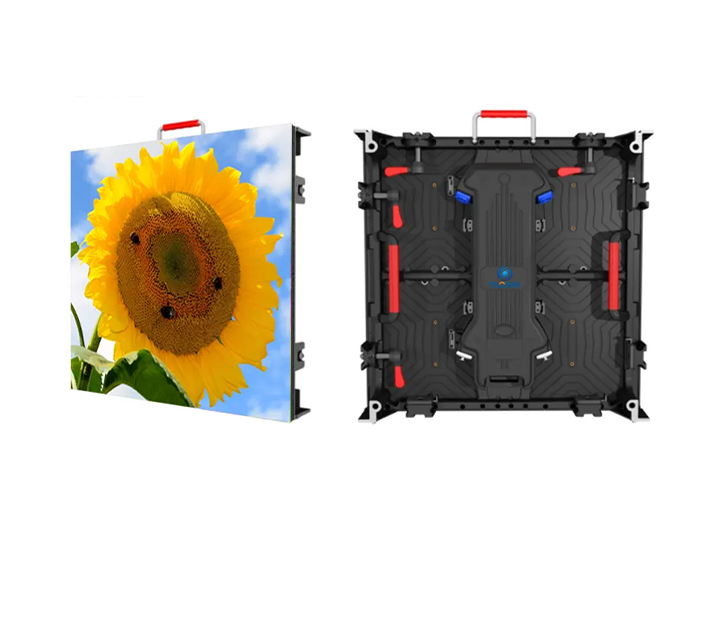
Product name: Rental LED Display /Stage LED Screen / LED Video wall Ap...
View Details →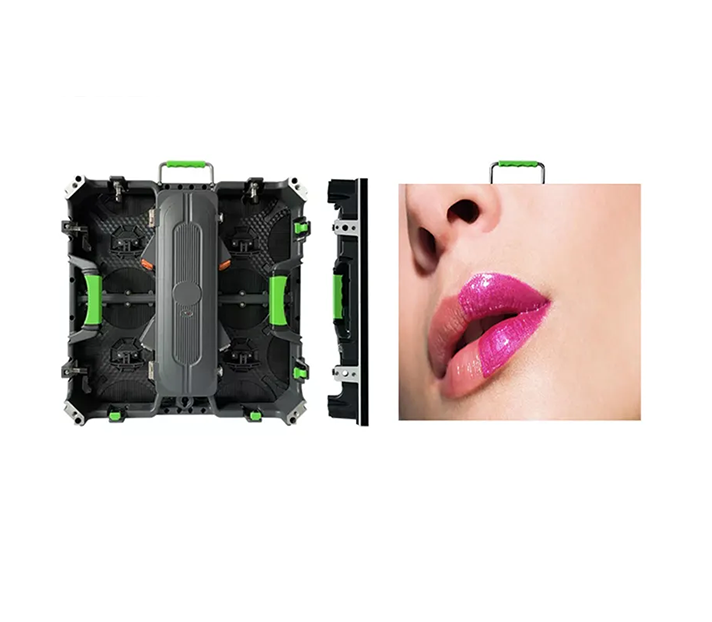
Product name: Rental LED Display /Stage LED Screen / LED Video wall Ap...
View Details →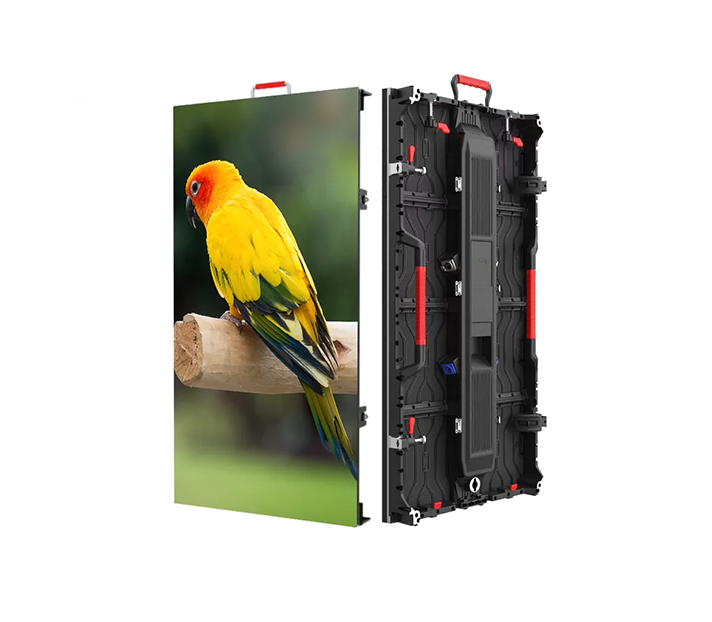
Product name: Rental LED Display /Stage LED Screen / LED Video wall Ap...
View Details →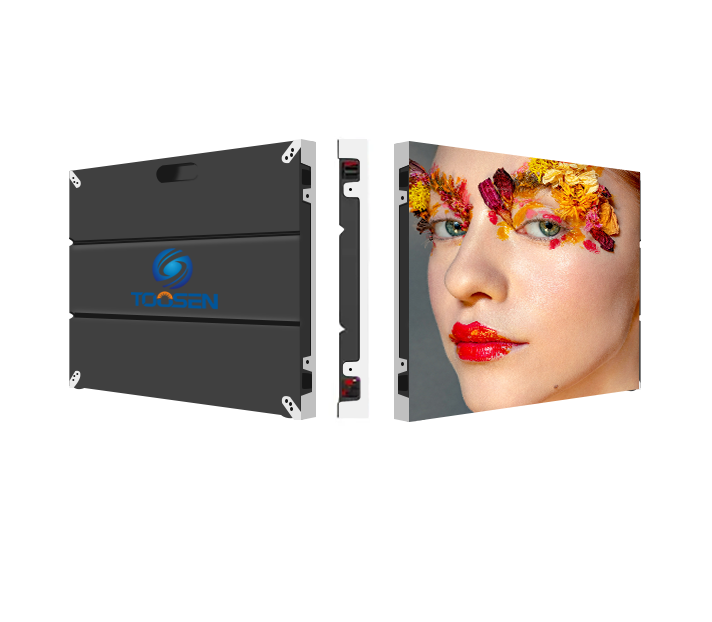
Product name: COB LED screen / Small pitch LED Display/ Fine Pitch LED...
View Details →
Product name: COB LED screen / Small pitch LED Display/ Fine Pitch LED...
View Details →A breakthrough in flexible LED technology now allows displays to achieve a minimum bending radius of just 50mm, enabling...
The film and television industry is rapidly adopting LED volume stages for virtual production, following the success of ...
Leading manufacturers have unveiled their latest COB (Chip-on-Board) LED display panels featuring pixel pitches as low a...
It is a professional LED screen solution built with high-quality lamp beads, driver ICs and cabinets, designed for stable, high-brightness and color-accurate visual presentation.
Pixel pitch depends on viewing distance. Close viewing (under 3m) usually needs P1.2-P2.5 fine pitch, while outdoor and long-distance scenarios commonly use P3.9-P10.
Yes. As a source factory we support custom cabinet size, shape, resolution, logo and packaging, with full OEM / ODM capability and bulk production capacity.
Standard products carry a multi-year warranty, with spares and remote technical support. Stock items ship quickly while custom orders are confirmed per project schedule.
Send us your project requirements and our engineering team will reply with a tailored quotation within 12 hours.
Get a Free Quote