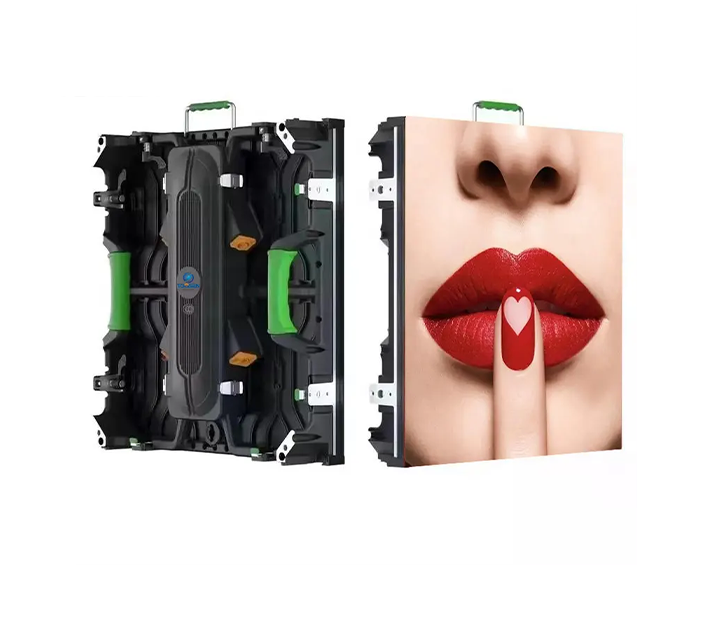
P1.953 Rental LED Display
Product name: Rental LED Display /Stage LED Screen / LED Video wall Ap...
View Details →Understanding Common Interactive LED Display Failures Interactive LED displays combine high-resolution video walls with touch or gesture-based input systems. These installations typically use surface-mounted device (SMD)...
Interactive LED displays combine high-resolution video walls with touch or gesture-based input systems. These installations typically use surface-mounted device (SMD) LEDs with pixel pitches ranging from 0.9 mm to 2.5 mm to ensure touch accuracy at close viewing distances of 1 to 3 meters. Common failure points include dead pixels, touch response lag, communication breakdowns between the control system and the LED panels, and power supply issues. A systematic troubleshooting approach begins with verifying the display’s physical state. Check for visible damage to the LED modules, such as cracked lenses or loose connectors. Confirm that the ambient temperature is within the manufacturer’s specified range, typically 0°C to 40°C, as excessive heat can cause erratic behavior. Also ensure the display’s brightness is set appropriately; for indoor interactive use, 600 to 1200 nits is standard, while outdoor units may require 2500 to 5000 nits. An incorrect brightness setting can mask touch input calibration errors.
Before proceeding with software diagnostics, measure the input voltage at the power supply unit. Most LED panels operate at 5V DC or 24V DC, and a deviation of more than 5% can cause flickering or failure to power on. Use a multimeter to check for stable output. If the display has multiple cabinets, verify that each cabinet’s power draw does not exceed the rated capacity, which for a typical 500 mm x 500 mm cabinet might be 150W to 300W depending on pixel density. Also inspect all data cables; damaged or loose Ethernet or fiber optic cables are frequent culprits in interactive setups where cables are subject to repeated movement from users.
Interactive LED displays often use infrared (IR) touch frames, capacitive overlay, or camera-based gesture recognition. The most common problem is misalignment between the touch coordinates and the displayed image. This usually occurs after a firmware update, a change in resolution, or physical impact to the bezel. Begin troubleshooting by running the built-in calibration utility, which typically requires touching a series of on-screen targets. Ensure the display resolution matches the native resolution of the LED panel, which for a 1920 x 1080 interactive wall might require an exact 1:1 pixel mapping. If the calibration utility fails, check the touch controller’s communication port. For USB-based touch frames, verify that the cable length does not exceed 5 meters without an active repeater, as signal degradation over longer distances introduces latency and jitter.
For gesture recognition systems using depth cameras, ensure the camera is mounted at the correct height and angle as specified by the manufacturer, usually between 1.5 and 2.5 meters above the floor. Clean the camera lens with a microfiber cloth; smudges or dust can cause false triggers. Also verify that the ambient lighting does not exceed the camera’s dynamic range. Direct sunlight or strong spotlights can overwhelm the sensor, reducing tracking accuracy. In such cases, adjust the display’s brightness to match the environment or install light diffusers. If touch response is delayed by more than 50 milliseconds, check the processing unit’s CPU load. An overloaded processor, often due to running multiple applications simultaneously, can increase latency. Close unnecessary background processes and ensure the touch driver is updated to the latest version.
Interactive LED displays require a stable video signal to maintain smooth touch interaction. A common issue is screen tearing or flickering, which often results from a mismatch between the input signal’s refresh rate and the LED controller’s capability. Most professional LED controllers support refresh rates of 1920 Hz to 3840 Hz, but the input source should be set to 60 Hz for standard interactive use. If the input is 50 Hz or 30 Hz, the display may exhibit visible strobing. Check the sending card settings in the control software to ensure the scan mode matches the panel’s specifications. For a 1/16 scan panel, the controller must be configured accordingly to avoid image artifacts.
Another frequent issue is partial or no video output on certain cabinets. This typically indicates a data chain break. Inspect the RJ45 or fiber optic connections between cabinets. Each cabinet in a daisy chain must have a unique ID number, usually set via DIP switches or software. If two cabinets share the same ID, the display will show duplicate or garbled content. Use the manufacturer’s mapping tool to verify cabinet IDs and reassign them if necessary. Also confirm that the total number of pixels in the chain does not exceed the controller’s maximum capacity. For example, a controller with a 2.3 million pixel limit cannot drive a 3840 x 1080 display (4.1 million pixels) without additional processing hardware. In such cases, split the signal across multiple controllers or use a video wall processor with higher throughput.
Power-related failures are among the most disruptive for interactive LED displays, as they can cause complete shutdowns or intermittent blackouts. Start by checking the main circuit breaker and the power distribution unit (PDU). Each LED cabinet should have its own fuse or circuit protection rated for the panel’s maximum power draw. For a typical P2.5 indoor panel, the power consumption is approximately 300W per square meter at full brightness. If multiple panels share a single circuit, ensure the total load does not exceed 80% of the circuit’s rating to prevent tripping. Use a thermal camera to identify hot spots on the power supply boards; temperatures above 85°C indicate imminent failure and require immediate replacement.
Overheating is particularly problematic in interactive environments where the display is touched frequently. Body heat and poor ventilation around the touch frame can raise internal temperatures. Ensure the display has adequate airflow, with at least 10 cm of clearance behind the panels. For outdoor interactive displays with IP65 or higher ratings, verify that the cooling fans or air conditioning units are operational. A clogged air filter can reduce airflow by 50% or more, leading to rapid temperature rise. Monitor the ambient temperature and humidity; many LED controllers log internal temperatures. If the display repeatedly shuts down after 30 minutes of use, it is likely overheating. Reduce the brightness to 70% as a temporary measure and schedule maintenance to clean fans and replace thermal paste on the power modules.
Interactive LED displays rely on complex software stacks that manage video playback, touch input, and network communication. A common error is the display showing a “No Signal” message despite the source being active. This often results from incorrect EDID (Extended Display Identification Data) settings. The LED controller must report a valid EDID to the source device. If the EDID is corrupted or missing, the source may output a resolution or refresh rate that the display cannot handle. Use the controller’s software to reset the EDID to default or manually set it to match the panel’s native resolution. For example, a 1920 x 1080 panel should have an EDID that reports exactly that resolution at 60 Hz.
Firmware incompatibility between the sending card and receiving cards can also cause communication failures. Ensure all components are running the same firmware version. If an update is needed, follow the manufacturer’s procedure exactly: power off the display, update the sending card first, then update each receiving card one by one. Do not interrupt the update process, as this can brick the controller. For networked interactive displays, verify that the control computer and the LED controller are on the same subnet and that no firewall is blocking the required ports (typically UDP port 5000 or TCP port 80). Use a ping command to test connectivity. If packets are lost, replace the Ethernet cable or switch. Finally, check the log files in the control software for error codes. Many manufacturers provide a lookup table for common codes, such as “E-01” indicating a power supply fault or “E-04” indicating a data link failure.
Proactive maintenance reduces the frequency of interactive LED display failures. Establish a weekly inspection routine that includes cleaning the LED surface with a soft, lint-free cloth to remove dust and fingerprints. For outdoor units with IP65 rating, use a low-pressure water wash and allow the display to dry completely before powering on. Check all cable connections for corrosion or looseness, especially in humid environments. Tighten any loose screws on the cabinet hinges and touch frame brackets. Calibrate the touch system monthly using the manufacturer’s software tool. Document the calibration results to track drift over time; a touch point that shifts by more than 5 pixels per month indicates a hardware issue.
Monitor the display’s power consumption over time. A gradual increase in current draw may indicate failing LED drivers or capacitors. Replace any module that shows more than 5% dead pixels in a 10 cm x 10 cm area, as this will degrade the interactive experience. Keep spare parts on hand, including power supplies, receiving cards, and LED modules of the same pixel pitch and batch number to ensure color consistency. Update the control software and firmware at least twice a year, but always test updates on a single cabinet first. By following these guidelines, you can maintain a high level of performance and minimize downtime for your interactive LED display installation.
Product name: Rental LED Display /Stage LED Screen / LED Video wall Ap...
View Details →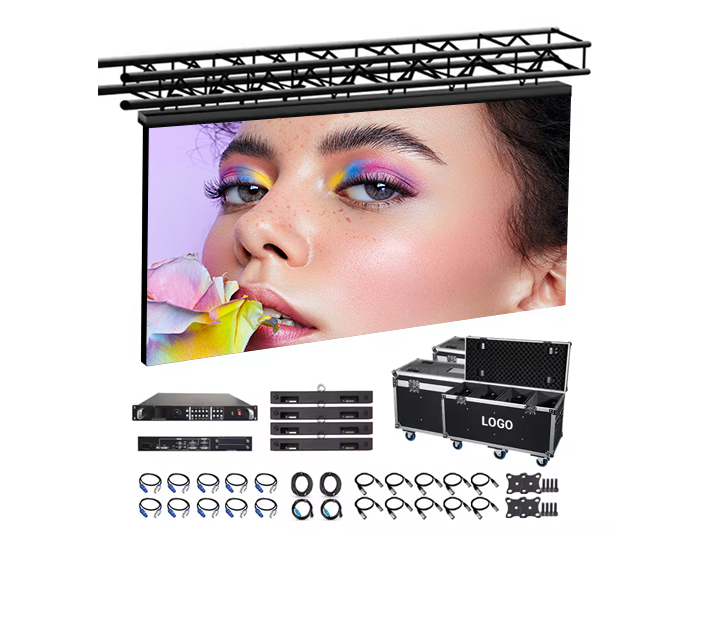
Product name: Rental LED Display /Stage LED Screen / LED Video wall Ap...
View Details →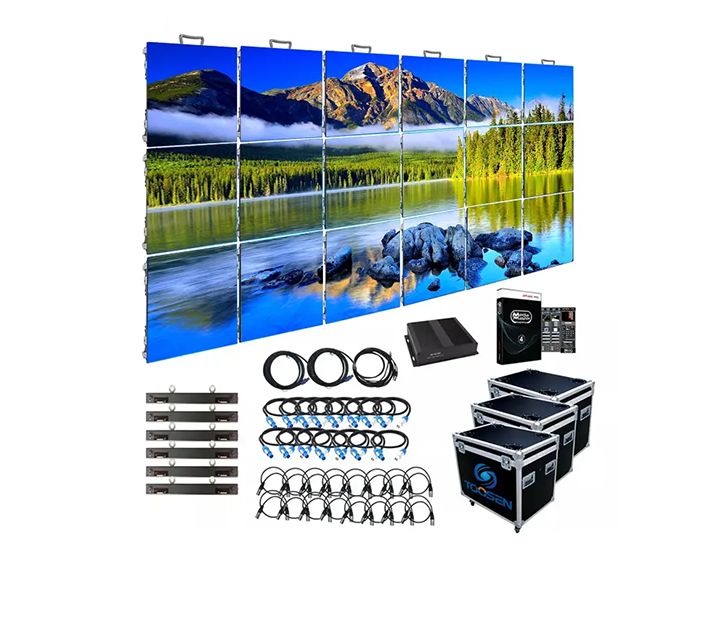
Product name: Rental LED Display /Stage LED Screen / LED Video wall Ap...
View Details →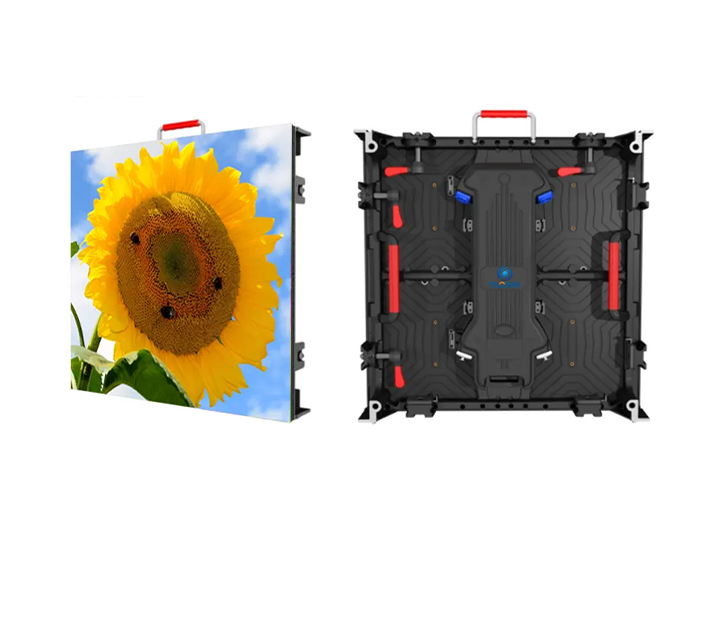
Product name: Rental LED Display /Stage LED Screen / LED Video wall Ap...
View Details →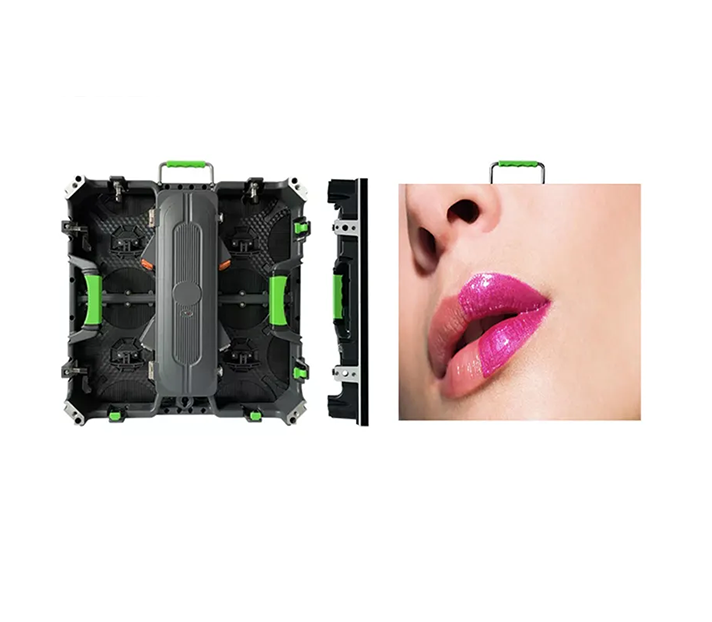
Product name: Rental LED Display /Stage LED Screen / LED Video wall Ap...
View Details →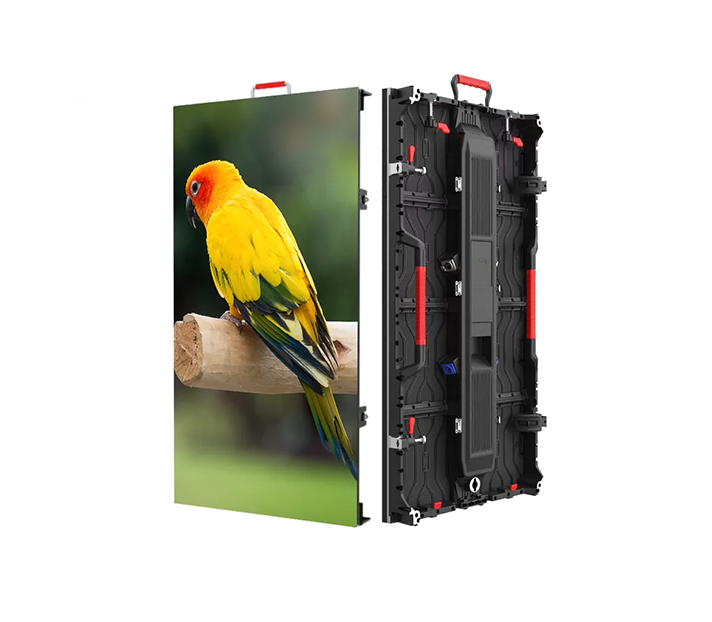
Product name: Rental LED Display /Stage LED Screen / LED Video wall Ap...
View Details →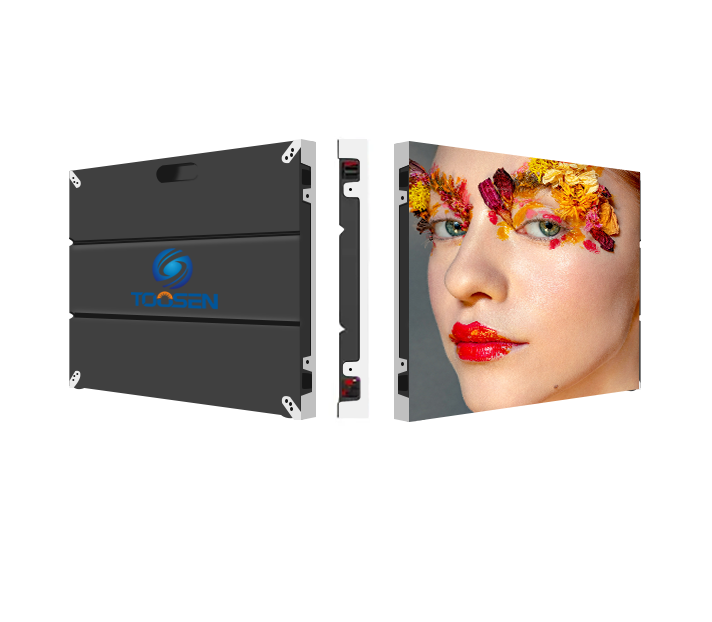
Product name: COB LED screen / Small pitch LED Display/ Fine Pitch LED...
View Details →
Product name: COB LED screen / Small pitch LED Display/ Fine Pitch LED...
View Details →Leading manufacturers have unveiled their latest COB (Chip-on-Board) LED display panels featuring pixel pitches as low a...
Major sports venues worldwide are upgrading to next-generation LED ribbon displays with improved viewing angles and fast...
The latest generation of rental LED panels weighs just 4.5kg per cabinet, a 30% reduction from previous models. The ultr...
It is a professional LED screen solution built with high-quality lamp beads, driver ICs and cabinets, designed for stable, high-brightness and color-accurate visual presentation.
Pixel pitch depends on viewing distance. Close viewing (under 3m) usually needs P1.2-P2.5 fine pitch, while outdoor and long-distance scenarios commonly use P3.9-P10.
Yes. As a source factory we support custom cabinet size, shape, resolution, logo and packaging, with full OEM / ODM capability and bulk production capacity.
Standard products carry a multi-year warranty, with spares and remote technical support. Stock items ship quickly while custom orders are confirmed per project schedule.
Send us your project requirements and our engineering team will reply with a tailored quotation within 12 hours.
Get a Free Quote