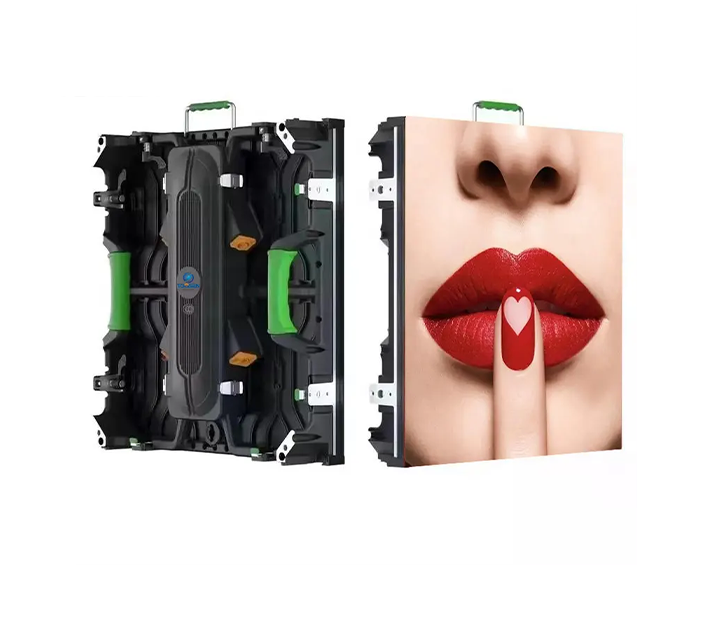
P1.953 Rental LED Display
Product name: Rental LED Display /Stage LED Screen / LED Video wall Ap...
View Details →Understanding Common P1.8 LED Display Failures The P1.8 LED display, with its 1.8 mm pixel pitch, offers a high resolution of approximately 160,000 pixels per square meter, making it a popular choice for indoor applicati...
The P1.8 LED display, with its 1.8 mm pixel pitch, offers a high resolution of approximately 160,000 pixels per square meter, making it a popular choice for indoor applications such as control rooms, broadcast studios, and corporate lobbies. Despite its robust construction, troubleshooting is occasionally required. The most frequent issues include dead pixels, color inconsistencies, power supply failures, and communication interruptions. For a display operating at 600 nits brightness and a refresh rate of 3840 Hz, even minor faults can be visually disruptive at a typical viewing distance of 2 meters. Understanding the root causes of these failures is the first step toward effective repair. Common causes include loose cabling, overheating due to insufficient ventilation, moisture ingress despite an IP30 rating, and driver IC damage from electrical surges. Always begin troubleshooting by checking the power supply unit (PSU) output voltage, which should be a stable 5V DC for most P1.8 modules, and verifying that all data cables are securely connected.
Dead pixels on a P1.8 display appear as constantly lit or dark points on the screen. A single dead pixel is often caused by a faulty LED chip or a cold solder joint on the module’s PCB. For a display with a pixel pitch of 1.8 mm, each pixel consists of red, green, and blue LEDs. If one color fails, the pixel may appear as a different color or remain dark. To diagnose, use a test pattern that cycles through primary colors. If a pixel is stuck on a single color, the corresponding driver IC may be damaged. If an entire module fails, check the power and data ribbon cables. The module typically draws around 15-20 watts at peak brightness. Replace a damaged module by removing the retaining screws and disconnecting the flat ribbon cable. When installing a new module, ensure the brightness and color calibration match the surrounding panels by using the manufacturer’s software. For dead pixels that are not part of a full module failure, consider using a pixel repair tool, but note that permanent hardware replacement is often more reliable for high-brightness applications.
Color and brightness non-uniformity in a P1.8 LED display can manifest as visible patches or gradients across the screen. This problem is often due to inconsistent calibration or aging of LEDs. Each module should be calibrated to achieve a uniformity within a delta E of less than 2 for color accuracy. The display’s brightness of 600 nits must be evenly distributed; variations of more than 10% are noticeable. Start troubleshooting by checking the brightness settings in the sending card software. Ensure that the white balance is set to 6500K for standard indoor use. If the issue persists, perform a full-screen calibration using a spectrophotometer. This process adjusts the gain and offset values for each color channel on every module. Additionally, verify that the power supply voltage is stable across all modules. A voltage drop of more than 0.3V between the PSU and the farthest module can cause dimming. Use a multimeter at the module’s power input pins. For persistent color shifts, inspect the driver ICs for overheating; temperatures above 85°C can alter color output. Finally, update the display’s firmware to ensure the latest color correction algorithms are applied.
Power supply failures are a leading cause of P1.8 LED display downtime. The display’s total power draw for a 1 square meter panel is approximately 400 watts at peak brightness, with an average consumption of 150 watts. A typical PSU used in these displays outputs 5V DC at 40-60 amps. If the display flickers or fails to turn on, first measure the AC input voltage, which should be 110-240V. Then, check the DC output; if it is below 4.8V, the PSU may need replacement. Overheating is a common issue, so ensure that the PSU’s operating temperature remains below 60°C. Check for blown fuses on the PSU itself. Also, inspect the power distribution cables for damage or loose connections. For displays with a refresh rate of 3840 Hz, electrical noise can cause interference; use shielded cables for data transmission. If multiple modules are dim, the issue may be a faulty power hub or a short circuit in the module’s power connector. Always disconnect power before handling any electrical components. Use a thermal camera to identify hot spots on the PSU or modules, as these indicate potential failure points. Replace any PSU that shows bulging capacitors or burn marks.
Data communication problems can cause partial screen corruption, flickering, or complete loss of image. The P1.8 display uses protocols like Ethernet, fiber optic, or HDMI for signal transmission. A common issue is a loose or damaged Ethernet cable. Check the connection at the sending card and the receiving card on the display. The maximum cable length for standard Ethernet is 100 meters; for longer runs, use fiber optic converters. If the display shows garbled content, verify that the sending card’s resolution settings match the display’s native resolution. For a P1.8 display with a 1920x1080 resolution, the pixel clock should be around 148.5 MHz. Use the software’s diagnostic tool to test signal integrity. If the issue is isolated to a single module, the ribbon cable connecting it to the hub board may be faulty. Replace the ribbon cable with one of the correct length and pinout. Also, ensure that the grounding is proper; a ground loop can introduce noise. Check the refresh rate setting; a mismatch between the sending card and the display can cause flickering. For advanced troubleshooting, use an oscilloscope to examine the data signal on the receiving card’s input pins. A clean square wave should be present. If not, replace the sending card or the main controller.
Preventive maintenance is essential for maximizing the lifespan of a P1.8 LED display, which can exceed 100,000 hours. Given its indoor IP30 rating, dust accumulation on the modules and PSUs is a primary concern. Clean the display surface every three months using a soft, dry microfiber cloth. Do not use liquid cleaners, as moisture can damage the LEDs. Check the ventilation fans and filters monthly; clogged filters can cause overheating and reduce brightness by up to 20%. Monitor the display’s temperature and humidity using built-in sensors; ideal conditions are 20-25°C and 40-60% relative humidity. Perform a full system calibration annually to maintain color accuracy. Update firmware for the sending card and modules as new versions are released to fix bugs and improve performance. Keep spare modules, PSUs, and ribbon cables on hand for quick replacements. For critical installations, consider a redundant power supply configuration. Finally, document all maintenance activities and track the display’s cumulative runtime. By following these steps, you can ensure that your P1.8 LED display remains reliable, with consistent brightness and color performance for years to come.
Product name: Rental LED Display /Stage LED Screen / LED Video wall Ap...
View Details →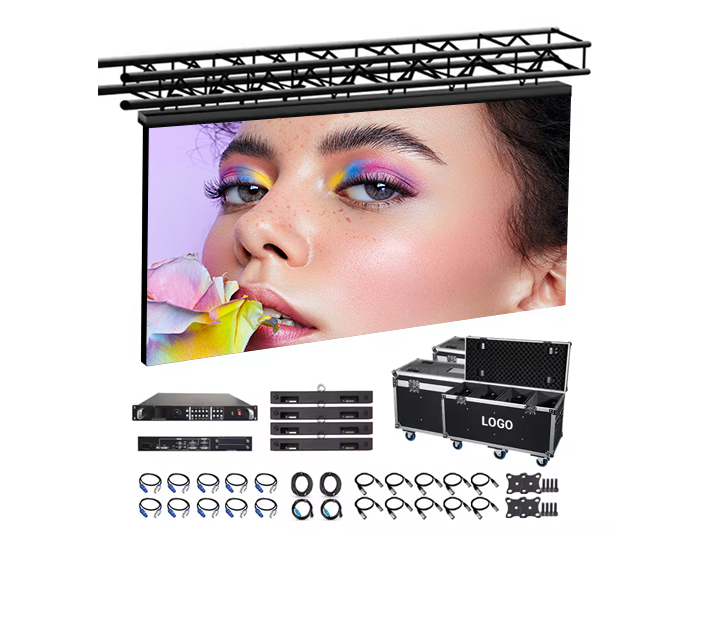
Product name: Rental LED Display /Stage LED Screen / LED Video wall Ap...
View Details →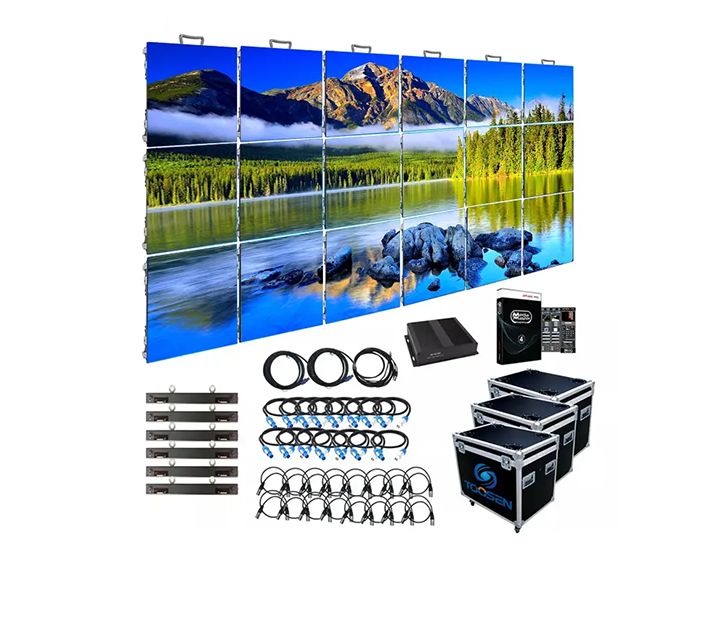
Product name: Rental LED Display /Stage LED Screen / LED Video wall Ap...
View Details →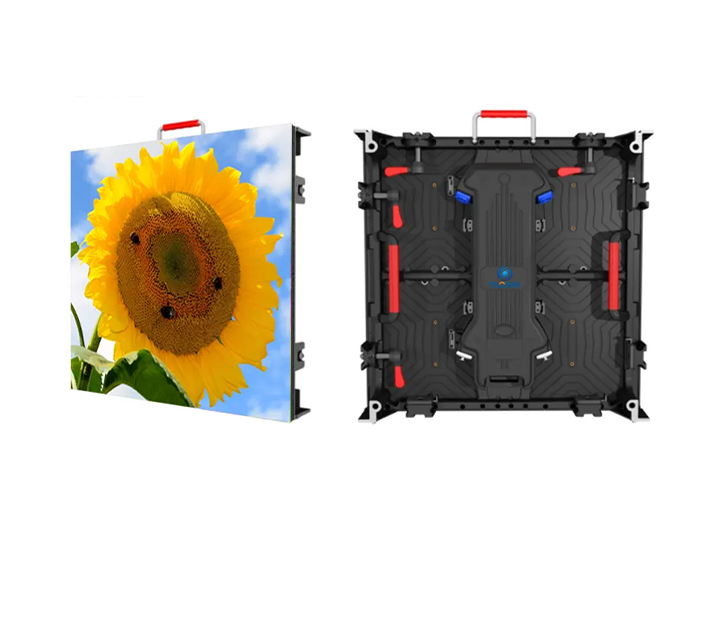
Product name: Rental LED Display /Stage LED Screen / LED Video wall Ap...
View Details →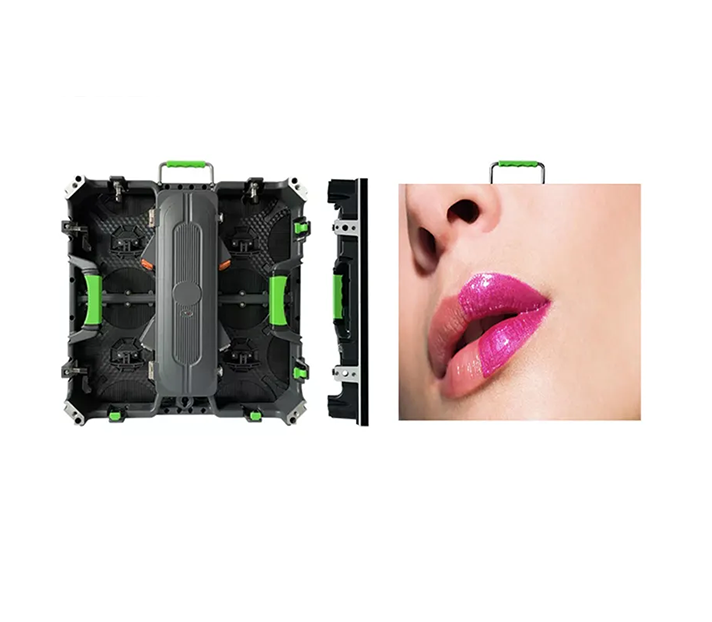
Product name: Rental LED Display /Stage LED Screen / LED Video wall Ap...
View Details →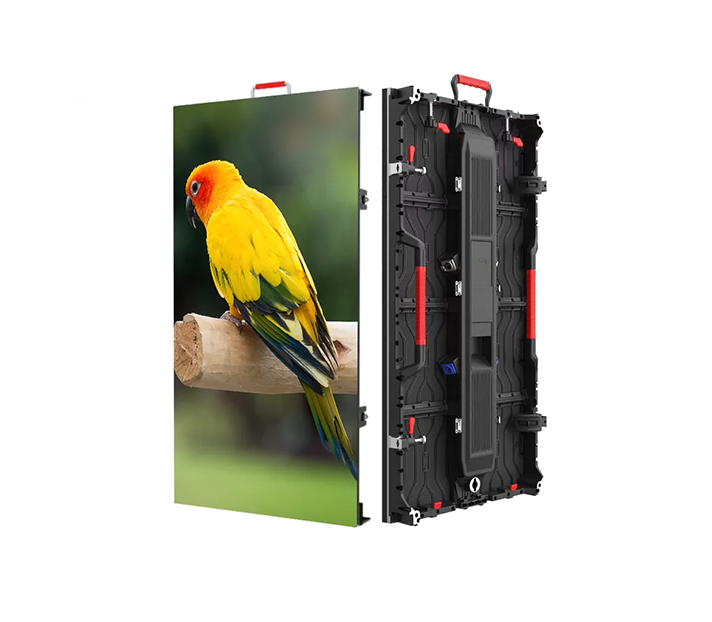
Product name: Rental LED Display /Stage LED Screen / LED Video wall Ap...
View Details →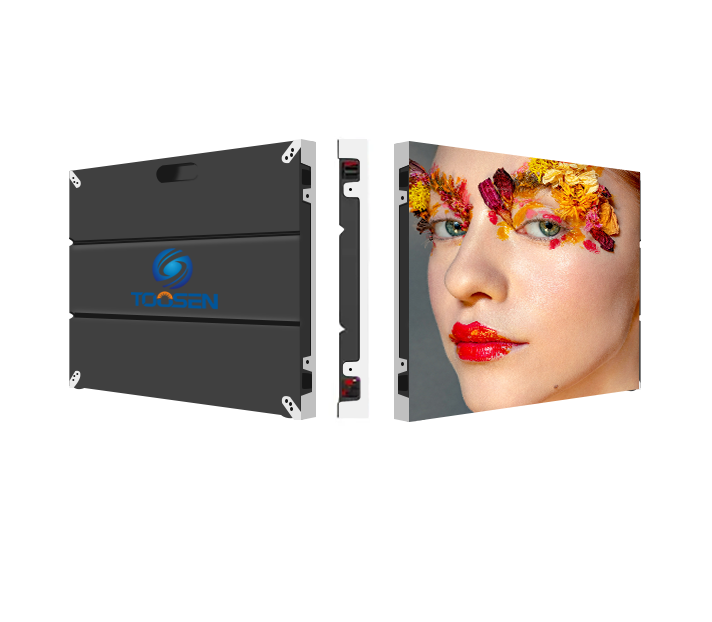
Product name: COB LED screen / Small pitch LED Display/ Fine Pitch LED...
View Details →
Product name: COB LED screen / Small pitch LED Display/ Fine Pitch LED...
View Details →The film and television industry is rapidly adopting LED volume stages for virtual production, following the success of ...
Major sports venues worldwide are upgrading to next-generation LED ribbon displays with improved viewing angles and fast...
The latest generation of rental LED panels weighs just 4.5kg per cabinet, a 30% reduction from previous models. The ultr...
It is a professional LED screen solution built with high-quality lamp beads, driver ICs and cabinets, designed for stable, high-brightness and color-accurate visual presentation.
Pixel pitch depends on viewing distance. Close viewing (under 3m) usually needs P1.2-P2.5 fine pitch, while outdoor and long-distance scenarios commonly use P3.9-P10.
Yes. As a source factory we support custom cabinet size, shape, resolution, logo and packaging, with full OEM / ODM capability and bulk production capacity.
Standard products carry a multi-year warranty, with spares and remote technical support. Stock items ship quickly while custom orders are confirmed per project schedule.
Send us your project requirements and our engineering team will reply with a tailored quotation within 12 hours.
Get a Free Quote