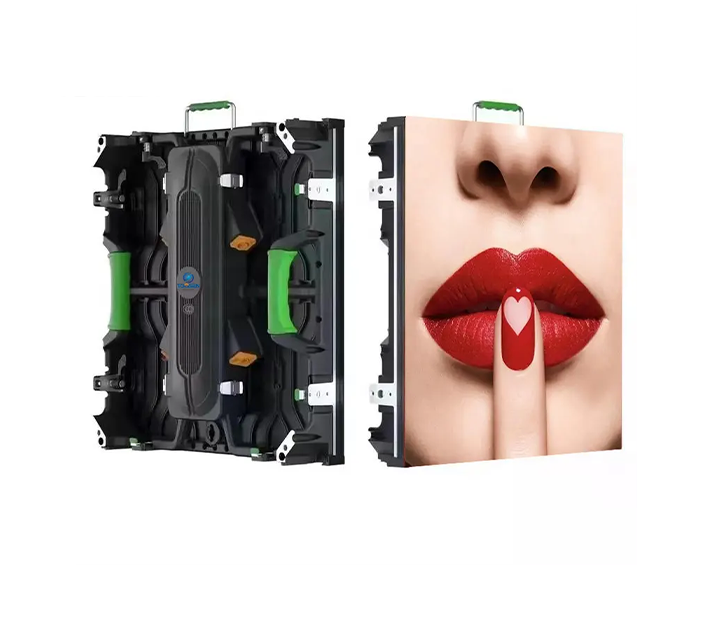
P1.953 Rental LED Display
Product name: Rental LED Display /Stage LED Screen / LED Video wall Ap...
View Details →Introduction to Indoor LED Display Troubleshooting Indoor LED displays are sophisticated digital signage systems used in corporate lobbies, retail environments, control rooms, and event spaces. These displays rely on pre...
Indoor LED displays are sophisticated digital signage systems used in corporate lobbies, retail environments, control rooms, and event spaces. These displays rely on precise integration of power supplies, control systems, LED modules, and signal processing hardware. When a malfunction occurs, it can result in blank screens, color distortion, flickering, or partial image loss. This guide provides a systematic approach to diagnosing and resolving common indoor LED display issues. Understanding the specific technical parameters of your display, such as pixel pitch (e.g., P1.2mm to P4.8mm), brightness levels (typically 600 to 1500 nits for indoor use), and refresh rate (1920Hz to 3840Hz), is essential for effective troubleshooting. The following sections address the most frequent problems encountered by operators and technicians, offering concrete steps to restore optimal performance.
The first step in any troubleshooting process is verifying power delivery and physical connections. Indoor LED displays typically operate on 110V to 240V AC input, with power draw varying based on pixel density and brightness settings. A P2.5mm pixel pitch display running at maximum brightness of 1200 nits may consume approximately 300 to 500 watts per square meter. If the display appears completely dark or shows no sign of life, check the main power switch, circuit breaker, and power cables. Confirm that the power supply units (PSUs) are receiving input voltage using a multimeter. Common PSU failures include blown fuses, capacitor leakage, or output voltage drop below the required 5V DC for LED modules. In daisy-chained power configurations, a single faulty PSU can cause an entire cabinet or row to fail. Ensure all data cables, including Ethernet, fiber optic, or HDMI connections, are securely seated. Loose connectors often cause intermittent signal loss or partial screen blackouts. For displays using hub boards or receiving cards, verify that the power indicator LEDs on these components are illuminated. If not, inspect the power distribution board for damaged traces or short circuits.
Color inaccuracies, such as tinted whites, uneven brightness, or incorrect color reproduction, are common indoor display problems. These issues often stem from incorrect calibration settings or faulty LED modules. Indoor displays typically achieve color uniformity through factory calibration using a spectrophotometer, targeting a color temperature of 6500K for neutral whites. If one section of the screen appears warmer or cooler, check the brightness and contrast settings in the sending card software. Ensure that the color gain values for red, green, and blue are balanced. For displays with pixel pitches below P2.0mm, viewing distance can be as close as 1.5 meters, making color inconsistency highly noticeable. Another cause is data corruption in the receiving card’s firmware, which can be resolved by reloading the configuration file. If individual pixels or groups of pixels show incorrect colors, the LED module driver IC may be damaged. For example, a shorted constant current driver IC can cause an entire column of LEDs to display the wrong color. Replace the affected module after verifying that the power supply voltage is stable. Additionally, check the gray scale performance; a display with a 16-bit processing depth should smoothly transition through 65,536 levels. If banding or posterization appears, the signal source or processing chain may have insufficient bit depth.
Flickering is a frequent complaint in indoor LED displays, particularly in environments with camera recording or high-speed motion content. The root cause is often an inadequate refresh rate or synchronization issues between the display and the video source. Indoor LED displays should operate at a refresh rate of at least 1920Hz to eliminate visible flicker to the human eye, with higher-end models reaching 3840Hz for flicker-free camera capture. If flickering occurs, first verify that the sending card’s refresh rate setting matches the display’s capability. In some cases, the display may be set to a lower refresh rate to reduce power consumption, such as 960Hz, which can cause visible strobing. Check the scan mode; indoor displays often use 1/8, 1/16, or 1/32 scan drivers. A mismatch between the scan mode and the receiving card configuration can cause flickering. For example, a 1/16 scan display configured as 1/8 will exhibit uneven brightness and flicker. Another common issue is electromagnetic interference (EMI) from nearby power cables or transformers. Shielded data cables and proper grounding of the display frame can mitigate this. If flickering is isolated to a specific module, inspect the flat ribbon cable connecting the module to the hub board. Damaged or oxidized contacts can cause intermittent signal loss. Replace the cable if necessary and ensure all locking tabs are engaged.
Dead pixels, where individual LEDs remain permanently off or on, are a visible defect that degrades image quality. Indoor displays with fine pixel pitches, such as P1.5mm, have millions of pixels, and a few dead pixels may be acceptable within manufacturer tolerances (typically less than 0.001% of total pixels). However, clusters of dead pixels or vertical/horizontal lines indicate more serious problems. If a single pixel is dead, the LED chip itself may have failed due to electrostatic discharge (ESD) or manufacturing defect. For lines, the issue is often a faulty driver IC on the LED module. For example, a shorted column driver can cause an entire vertical line of LEDs to remain lit. Use a magnifying glass to inspect the module’s surface for physical damage or solder joint cracks. If a complete row or column of modules is dark, the issue may be a failed receiving card or a broken data line. Indoor displays use differential signaling (such as RS485 or LVDS) for data transmission. A break in the daisy-chain cable between cabinets can cause loss of signal to downstream modules. Measure continuity on the data cable with a multimeter. In modular designs, swapping a suspect module with a known working one can quickly isolate the fault. Always power down the display before removing or inserting modules to prevent short circuits.
Indoor LED displays generate significant heat, especially when operating at high brightness levels. The IP rating for indoor displays is typically IP30 or IP40, meaning they are not sealed against dust or moisture. Overheating can cause color shift, reduced lifespan, or sudden shutdown. The recommended ambient operating temperature is 0°C to 40°C, with humidity between 10% and 90% non-condensing. If the display becomes too hot, check that ventilation fans are operational and air filters are clean. For displays mounted in recessed enclosures, ensure adequate airflow clearance of at least 10 centimeters on all sides. Thermal runaway can occur if power supplies are overloaded; verify that the total power draw does not exceed the PSU’s rated capacity. For example, a 200W PSU should not drive more than 40 modules at full brightness. Use a thermal camera to identify hot spots on the display surface. Another environmental factor is condensation, which can cause short circuits. If the display is installed in a high-humidity area, consider using a dehumidifier or increasing the display’s internal temperature with a heater. Finally, check the grounding system. Poor grounding can lead to static buildup, which damages sensitive LED driver ICs. Measure the resistance between the display frame and earth ground; it should be less than 1 ohm.
Indoor LED displays rely on a video source such as a media player, computer, or video processor. Signal input issues often manifest as no image, scrambled graphics, or resolution mismatches. Most indoor displays support HDMI, DVI, DisplayPort, or SDI inputs. Ensure that the source resolution matches the display’s native resolution. For example, a display with a total resolution of 1920x1080 pixels should receive a 1080p signal. If the source outputs a 4K signal without downscaling, the display may show only a portion of the image or fail to sync. Check the EDID settings on the sending card; some displays require manual EDID configuration to negotiate the correct resolution. Refresh rate mismatch is another common issue. If the source outputs 60Hz but the display is set to 50Hz, tearing or stuttering can occur. Use the video processor’s scaler to match frame rates. For displays with multiple input ports, test each port individually to rule out a faulty connector. If the image appears as a static or moving pattern, the receiving card may be in test mode. Exit test mode through the control software. Finally, update the firmware on both the sending and receiving cards to the latest version provided by the manufacturer. Firmware updates often fix compatibility issues with newer video sources and improve signal stability.
Product name: Rental LED Display /Stage LED Screen / LED Video wall Ap...
View Details →
Product name: Rental LED Display /Stage LED Screen / LED Video wall Ap...
View Details →
Product name: Rental LED Display /Stage LED Screen / LED Video wall Ap...
View Details →
Product name: Rental LED Display /Stage LED Screen / LED Video wall Ap...
View Details →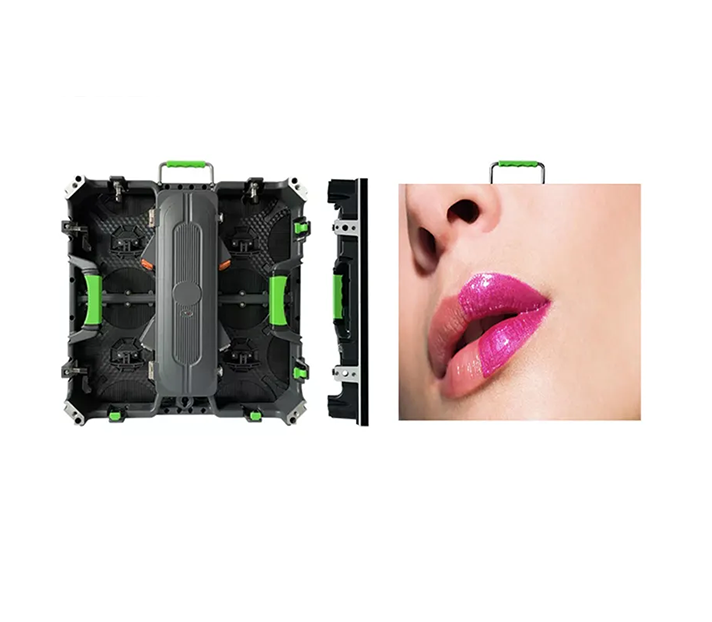
Product name: Rental LED Display /Stage LED Screen / LED Video wall Ap...
View Details →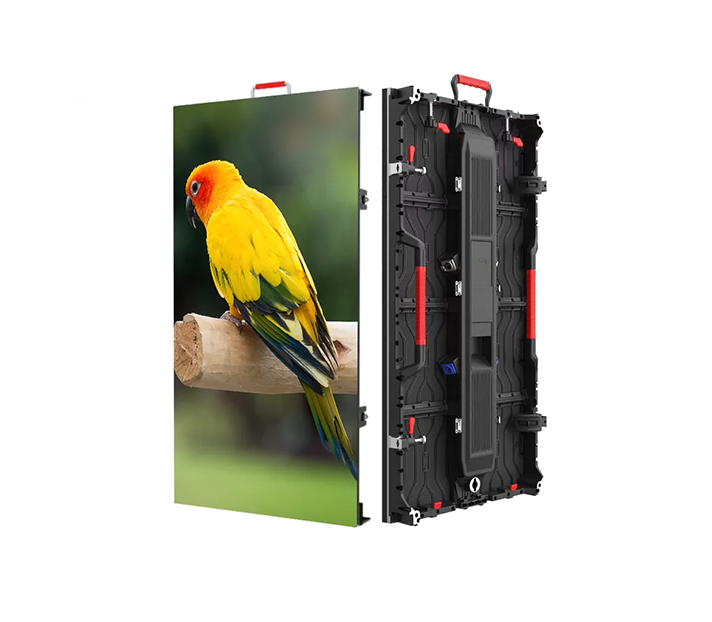
Product name: Rental LED Display /Stage LED Screen / LED Video wall Ap...
View Details →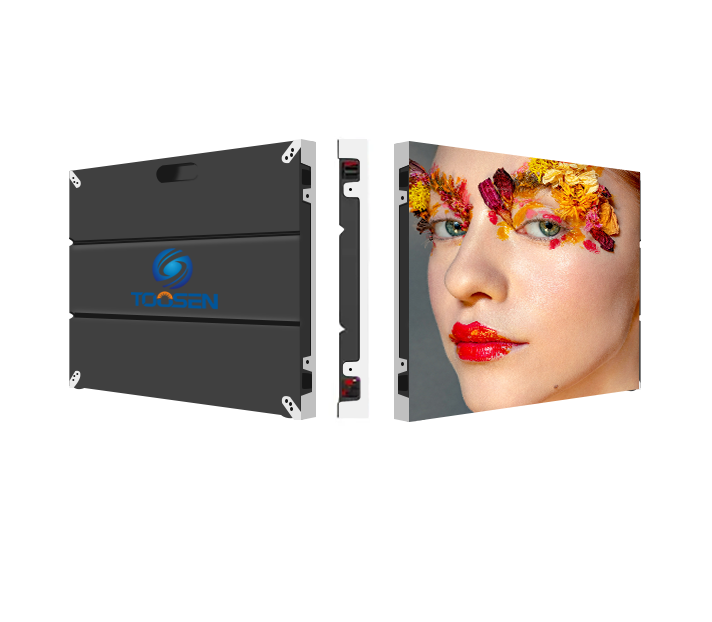
Product name: COB LED screen / Small pitch LED Display/ Fine Pitch LED...
View Details →
Product name: COB LED screen / Small pitch LED Display/ Fine Pitch LED...
View Details →The convergence of LED display technology and IoT (Internet of Things) is creating a new category of smart displays. The...
A new generation of outdoor LED displays has achieved brightness levels exceeding 12,000 nits while maintaining energy e...
Leading LED display manufacturers are embracing sustainability with eco-friendly manufacturing processes, recyclable mat...
It is a professional LED screen solution built with high-quality lamp beads, driver ICs and cabinets, designed for stable, high-brightness and color-accurate visual presentation.
Pixel pitch depends on viewing distance. Close viewing (under 3m) usually needs P1.2-P2.5 fine pitch, while outdoor and long-distance scenarios commonly use P3.9-P10.
Yes. As a source factory we support custom cabinet size, shape, resolution, logo and packaging, with full OEM / ODM capability and bulk production capacity.
Standard products carry a multi-year warranty, with spares and remote technical support. Stock items ship quickly while custom orders are confirmed per project schedule.
Send us your project requirements and our engineering team will reply with a tailored quotation within 12 hours.
Get a Free Quote