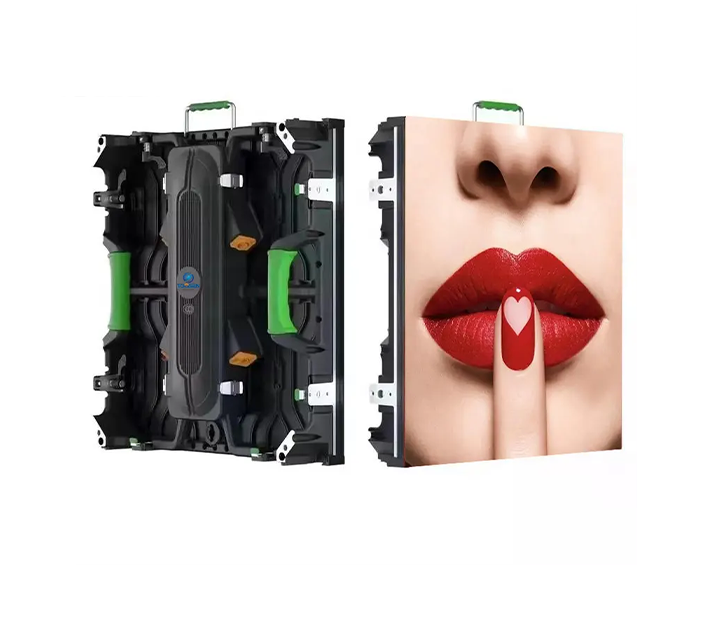
P1.953 Rental LED Display
Product name: Rental LED Display /Stage LED Screen / LED Video wall Ap...
View Details →In recent years, flexible LED screens have rapidly gained market share and become a go-to solution for creative displays. You’ll see them everywhere—on curved building facades, immersive stages, transportation hubs, and ...
In recent years, flexible LED screens have rapidly gained market share and become a go-to solution for creative displays. You’ll see them everywhere—on curved building facades, immersive stages, transportation hubs, and retail environments.
However, like any advanced display system, flexible LED screens can run into technical issues during operation. If you don’t address these problems quickly, they can lead to downtime, poor performance, and even hardware damage.
This guide breaks down the most common flexible LED screen problems and shows you exactly how to troubleshoot them efficiently.
What’s happening?
You install the LED control software and run it successfully at first. But after about 20 minutes, a message appears: “Please connect LED display controller.”
Why it happens This usually occurs because the software is running in trial mode and cannot detect the control hardware.
How to fix it
Follow these steps to establish a proper connection:
Then:
Configure the correct display parameters Restart the software Once done, you should see a “Connected Successfully”
message. At this point, the system will run without time limits.
What’s happening?
When you power on the system, the screen briefly shows:
during system initialization. The controller runs a quick self-check before entering stable operation.
How to fix it
No action needed. Just make sure:
The screen will stabilize automatically within a few seconds.
What’s the difference?
The system adjusts brightness based on time schedules or ambient conditions Ideal for outdoor or day/night environments Reduces power consumption and glare
You set a fixed brightness level via the control system Useful for controlled indoor environments like studios or exhibitions Key insight Brightness adjustment refers to the range between minimum and maximum luminance , not sensor-based light detection unless configured.
What’s happening?
Everything seems properly connected, but the screen shows nothing.
Likely causes and fixes
Check the following step by step:
, not hardware failure. Always validate the content pipeline first.
What’s happening?
A full LED module:
Check power cables Inspect 26-pin ribbon cables Confirm indicator lights on the power supply
Use a multimeter to check:
The adjustment knob is typically located near the indicator light on the power module.
Conclusion: Reduce Downtime with Structured Troubleshooting Flexible LED screens offer unmatched design freedom, but they also require systematic troubleshooting when issues arise.
To minimize downtime:
By following these best practices, you can quickly isolate faults, restore performance, and keep your LED display running at full efficiency.
Product name: Rental LED Display /Stage LED Screen / LED Video wall Ap...
View Details →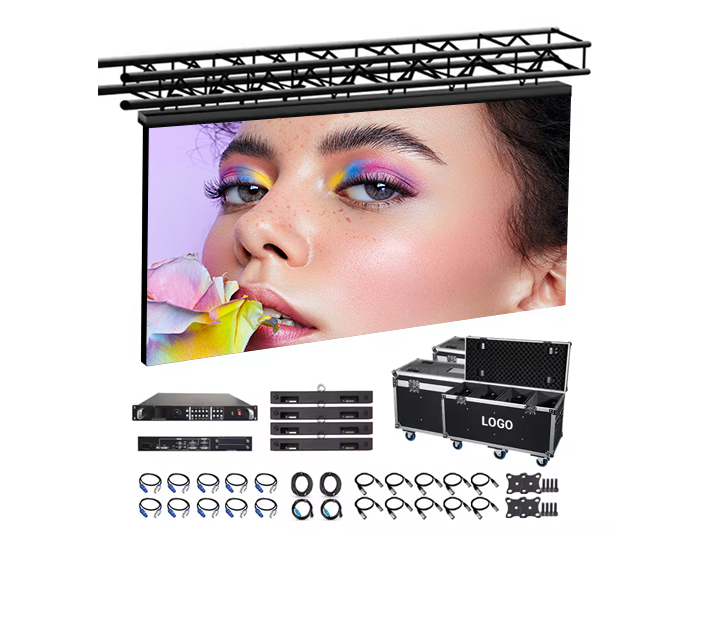
Product name: Rental LED Display /Stage LED Screen / LED Video wall Ap...
View Details →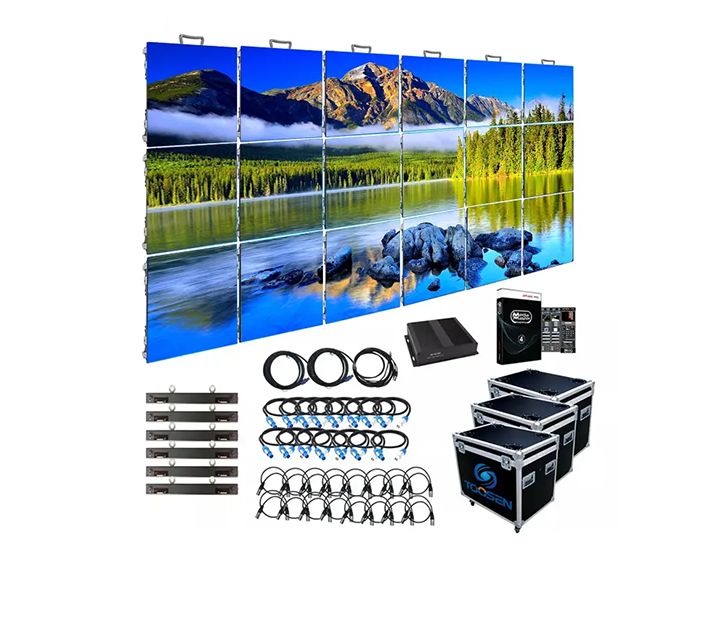
Product name: Rental LED Display /Stage LED Screen / LED Video wall Ap...
View Details →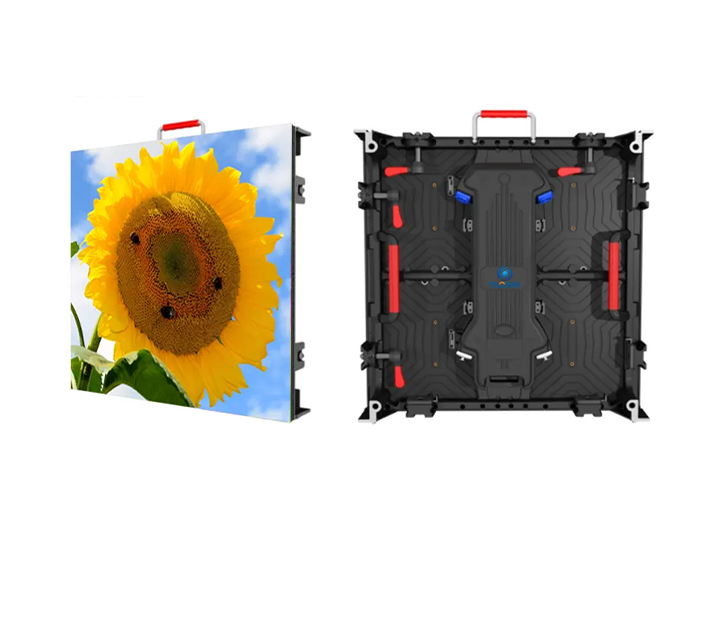
Product name: Rental LED Display /Stage LED Screen / LED Video wall Ap...
View Details →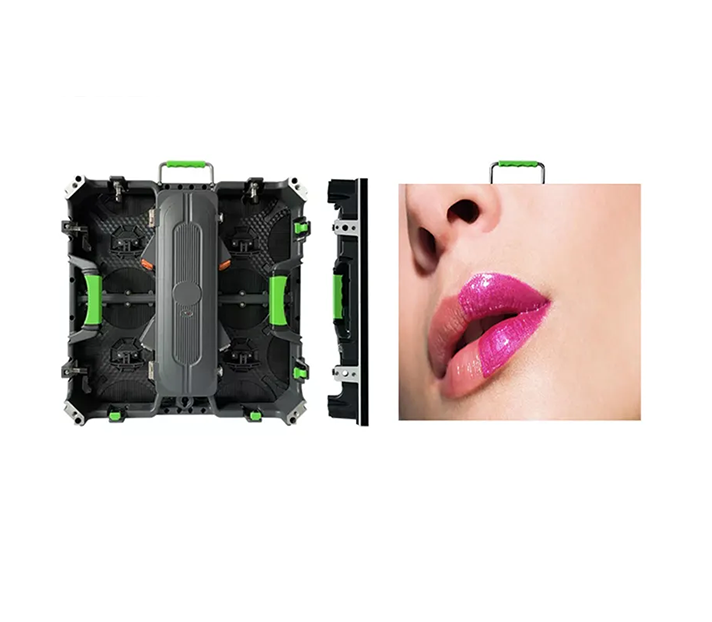
Product name: Rental LED Display /Stage LED Screen / LED Video wall Ap...
View Details →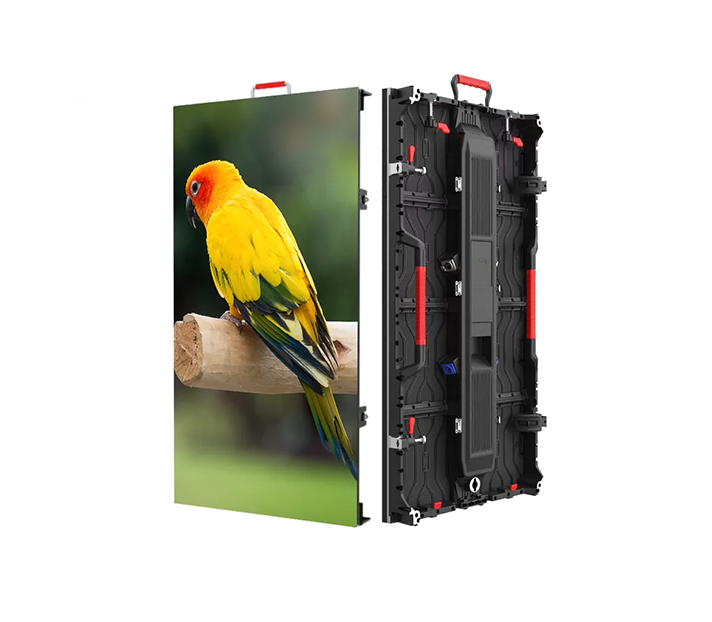
Product name: Rental LED Display /Stage LED Screen / LED Video wall Ap...
View Details →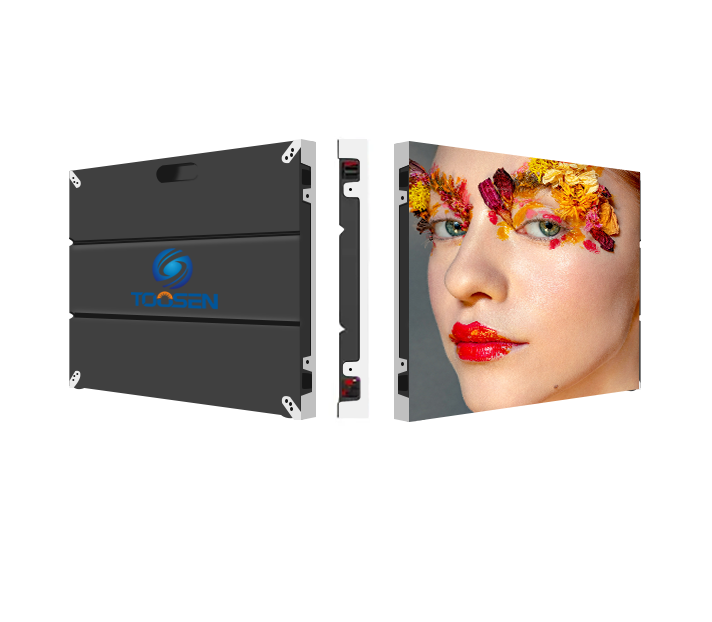
Product name: COB LED screen / Small pitch LED Display/ Fine Pitch LED...
View Details →
Product name: COB LED screen / Small pitch LED Display/ Fine Pitch LED...
View Details →The display industry is witnessing a technological battle between Mini LED and Micro LED technologies. Mini LED, with ch...
The film and television industry is rapidly adopting LED volume stages for virtual production, following the success of ...
The global LED display market is projected to reach $31.5 billion by 2027, driven by increasing demand for digital signa...
It is a professional LED screen solution built with high-quality lamp beads, driver ICs and cabinets, designed for stable, high-brightness and color-accurate visual presentation.
Pixel pitch depends on viewing distance. Close viewing (under 3m) usually needs P1.2-P2.5 fine pitch, while outdoor and long-distance scenarios commonly use P3.9-P10.
Yes. As a source factory we support custom cabinet size, shape, resolution, logo and packaging, with full OEM / ODM capability and bulk production capacity.
Standard products carry a multi-year warranty, with spares and remote technical support. Stock items ship quickly while custom orders are confirmed per project schedule.
Send us your project requirements and our engineering team will reply with a tailored quotation within 12 hours.
Get a Free Quote