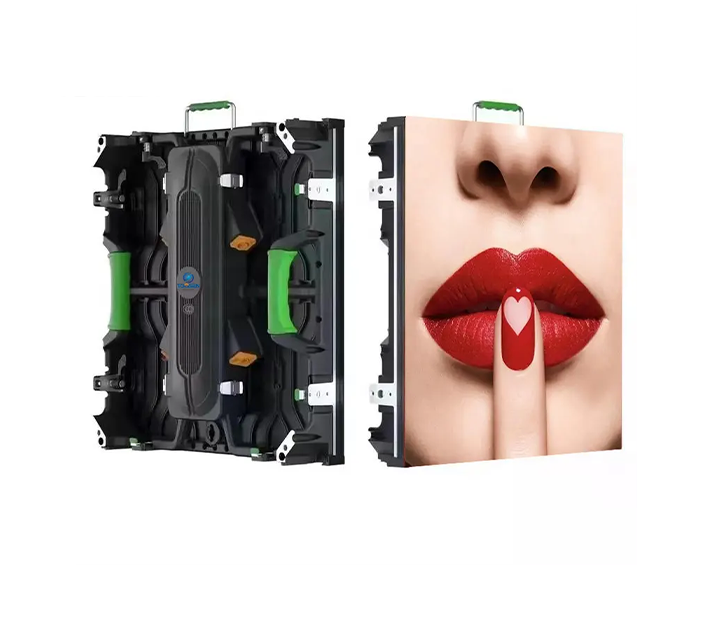
P1.953 Rental LED Display
Product name: Rental LED Display /Stage LED Screen / LED Video wall Ap...
View Details →In the LED display industry, configuration mistakes cause more screen failures than damaged hardware. When an LED wall suddenly shows stretched images, scrambled content, flickering, or missing sections, engineers often ...
In the LED display industry, configuration mistakes cause more screen failures than damaged hardware. When an LED wall suddenly shows stretched images, scrambled content, flickering, or missing sections, engineers often suspect the processor or LED modules first. However, the real problem usually starts inside the NovaStar configuration.
A recent discussion in the Reddit community highlighted a common issue: incorrect cabinet mapping and overloaded network ports in a NovaStar LED system. The troubleshooting process revealed several important lessons for LED technicians, rental companies, and AV integrators.
Many LED screen problems come from incorrect receiving card settings rather than defective hardware.
In the Reddit case, the user experienced abnormal screen behavior because the system mapped each cabinet as 128×128 pixels instead of the correct 192×192 resolution . At the same time, the installer connected too many cabinets to a single Ethernet port.
These two mistakes created signal instability and display errors throughout the LED wall.
Every LED cabinet contains a specific pixel resolution based on:
If the receiving card uses the wrong resolution, the screen cannot display content correctly.
For example:
Actual cabinet resolution:
NovaLCT mapping setting:
This mismatch causes:
Many technicians accidentally leave NovaLCT on its default mapping settings. As a result, the software sends incorrect pixel data to the LED modules.
The .rcfgx
file controls the receiving card configuration inside NovaStar systems. It defines:
Data grouping Module arrangement If you load the wrong .rcfgx file, the screen may still power on, but the image quality will immediately suffer.
Therefore, experienced LED engineers usually follow one simple rule:
Always verify the RCFGX file before replacing hardware.
In many cases, reloading the correct receiving card file fixes the entire issue within minutes.
The Reddit discussion also revealed another major problem: excessive port loading.
The installer connected:
This setup pushed the total pixel load close to one million pixels.
However, most NovaStar ports safely handle only:
When one port carries too much data, the LED wall may show:
Rental LED displays often encounter this issue during fast event setups because technicians prioritize speed over signal calculation.
Before configuring any LED display, calculate the total pixels per Ethernet port.
Use this formula:
\text{Total Pixels} = \text{Cabinet Quantity} \times \text{Cabinet Width} \times \text{Cabinet Height} Total Pixels=Cabinet Quantity×Cabinet Width×Cabinet Height
For example:
That number exceeds the recommended load for a single NovaStar output port.
Therefore, technicians should split the cabinets across multiple ports to maintain stable signal transmission.
Professional LED engineers usually follow a structured workflow when configuring LED walls.
Always request the original receiving card file from the LED manufacturer. Never rely on default templates.
Check the actual cabinet pixel dimensions before mapping the screen.
Common rental cabinet resolutions include:
Even small mistakes create major display problems.
Avoid overloading Ethernet ports. Split cabinets evenly across outputs.
After changing settings in NovaLCT:
Incorrect cabinet sequencing often causes:
Always confirm the physical layout matches the software mapping.
Many installers immediately suspect:
Bad sending cards Video processor failure Damaged cables However, software configuration errors remain far more common.
In fact, many experienced engineers troubleshoot NovaStar systems in this order:
Verify cabinet resolution Inspect port loading Confirm mapping sequence Test hardware only after software verification This workflow saves significant time during live events and rental installations.
NovaStar systems provide powerful LED display control, but even small configuration mistakes can create major screen problems. Incorrect cabinet mapping, wrong RCFGX files, and overloaded Ethernet ports remain some of the most common causes of LED wall failures.
Fortunately, these issues are usually easy to fix once technicians identify the real source of the problem.
Before replacing expensive hardware, always:
Re-map the LED wall carefully In many cases, a simple configuration correction restores the entire display system within minutes.
Product name: Rental LED Display /Stage LED Screen / LED Video wall Ap...
View Details →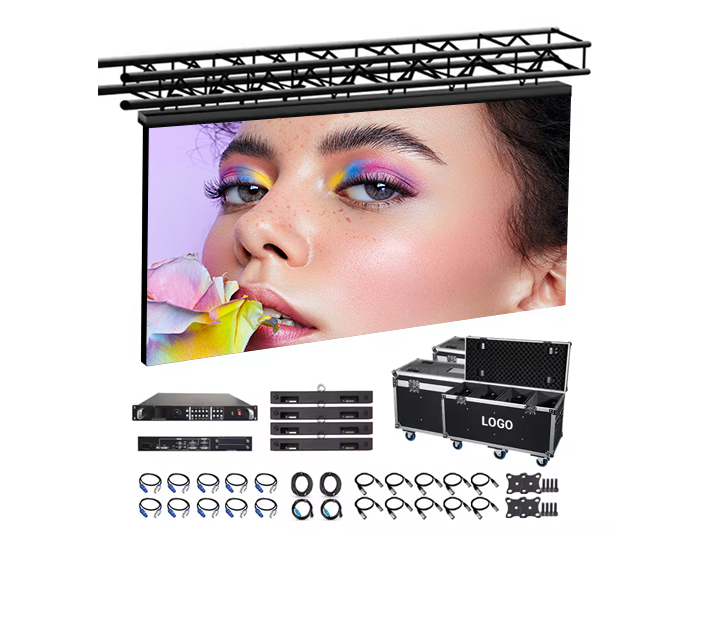
Product name: Rental LED Display /Stage LED Screen / LED Video wall Ap...
View Details →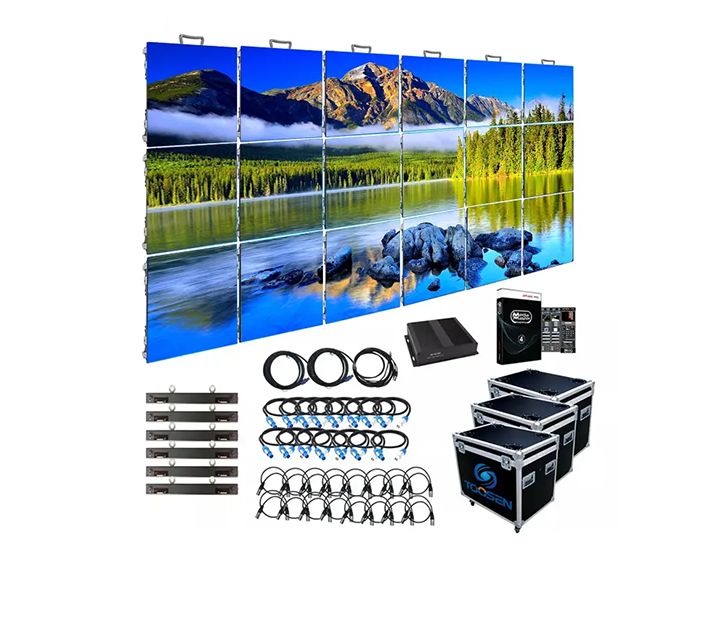
Product name: Rental LED Display /Stage LED Screen / LED Video wall Ap...
View Details →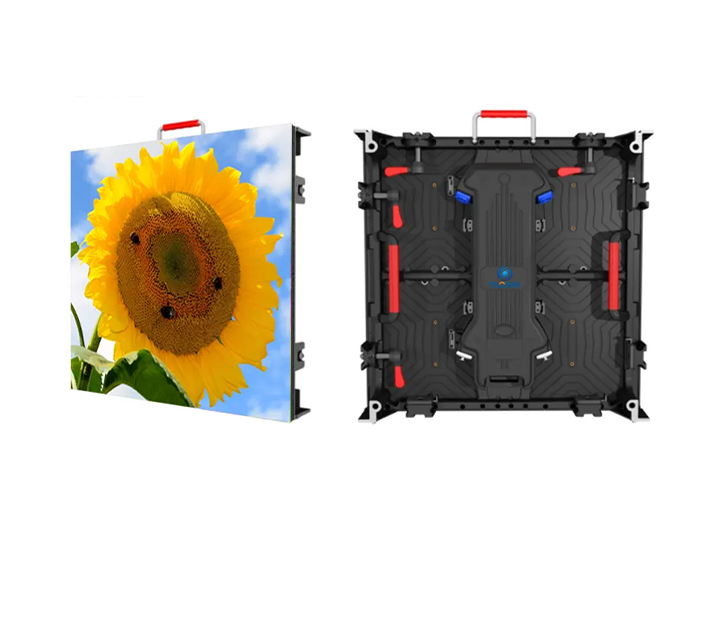
Product name: Rental LED Display /Stage LED Screen / LED Video wall Ap...
View Details →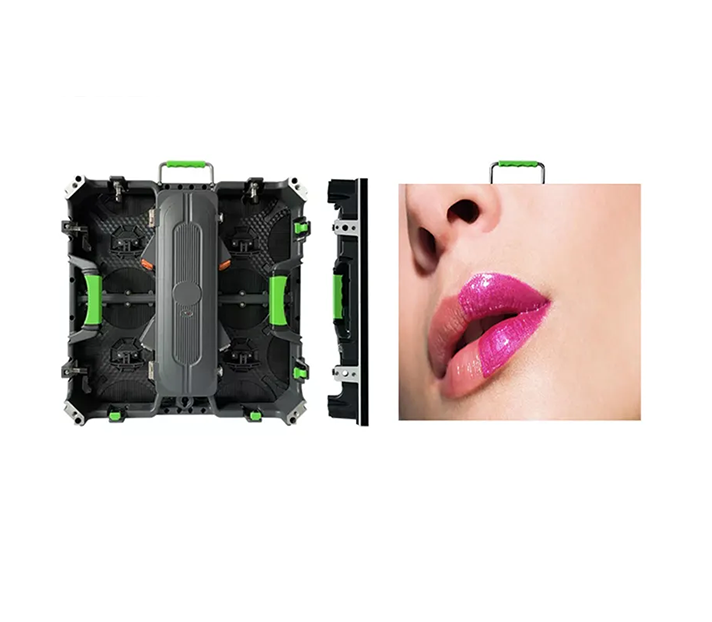
Product name: Rental LED Display /Stage LED Screen / LED Video wall Ap...
View Details →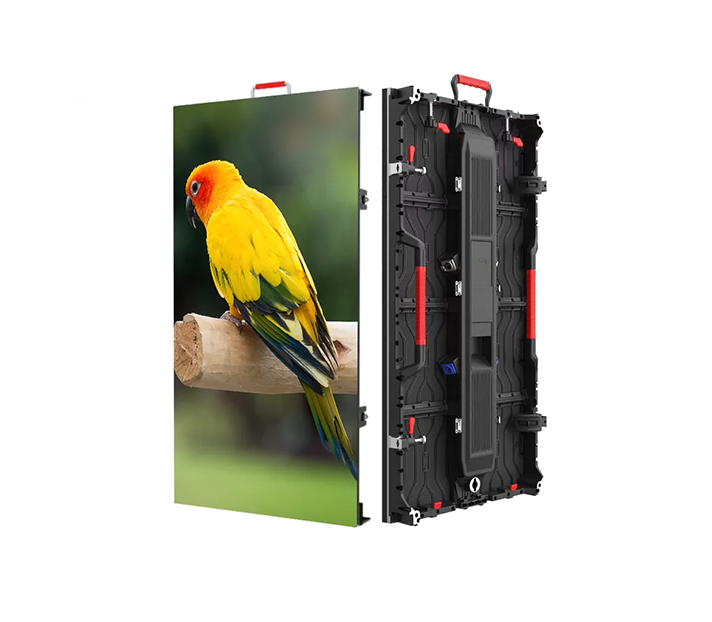
Product name: Rental LED Display /Stage LED Screen / LED Video wall Ap...
View Details →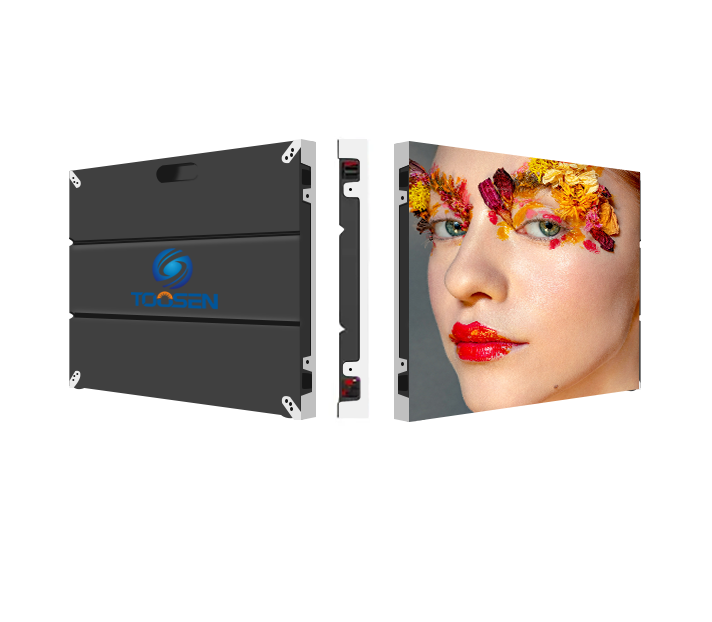
Product name: COB LED screen / Small pitch LED Display/ Fine Pitch LED...
View Details →
Product name: COB LED screen / Small pitch LED Display/ Fine Pitch LED...
View Details →Leading manufacturers have unveiled their latest COB (Chip-on-Board) LED display panels featuring pixel pitches as low a...
A breakthrough in flexible LED technology now allows displays to achieve a minimum bending radius of just 50mm, enabling...
The display industry is witnessing a technological battle between Mini LED and Micro LED technologies. Mini LED, with ch...
It is a professional LED screen solution built with high-quality lamp beads, driver ICs and cabinets, designed for stable, high-brightness and color-accurate visual presentation.
Pixel pitch depends on viewing distance. Close viewing (under 3m) usually needs P1.2-P2.5 fine pitch, while outdoor and long-distance scenarios commonly use P3.9-P10.
Yes. As a source factory we support custom cabinet size, shape, resolution, logo and packaging, with full OEM / ODM capability and bulk production capacity.
Standard products carry a multi-year warranty, with spares and remote technical support. Stock items ship quickly while custom orders are confirmed per project schedule.
Send us your project requirements and our engineering team will reply with a tailored quotation within 12 hours.
Get a Free Quote