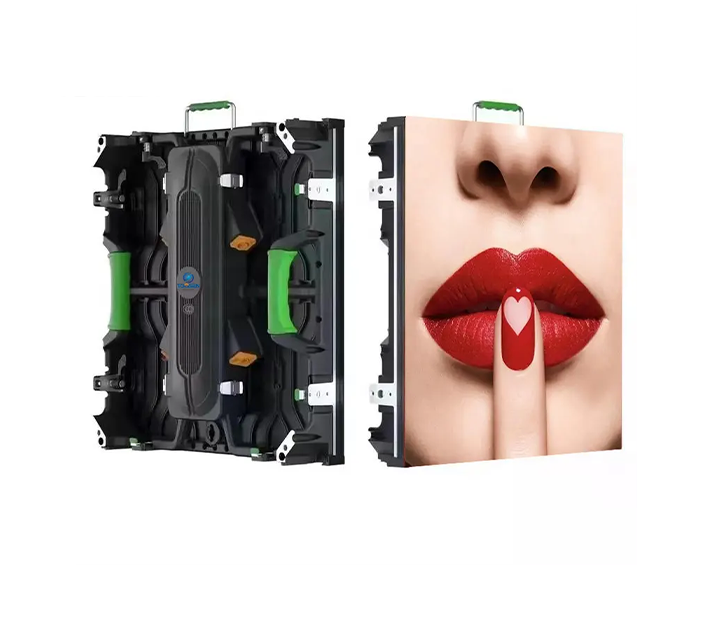
P1.953 Rental LED Display
Product name: Rental LED Display /Stage LED Screen / LED Video wall Ap...
View Details →Understanding the Calibration Requirements for COB LED Displays in Corporate Lobbies Corporate lobbies serve as the visual gateway to an organization, and a COB (Chip-on-Board) LED display installed in such an environmen...
Corporate lobbies serve as the visual gateway to an organization, and a COB (Chip-on-Board) LED display installed in such an environment demands meticulous calibration to ensure a flawless first impression. Unlike standard SMD displays, COB technology offers superior protection with an IP65 rating on the front, making it resistant to dust and moisture, but it also requires precise calibration to leverage its high contrast ratio and wide viewing angle. For a lobby display with a pixel pitch of 1.2 mm to 1.5 mm, the viewing distance typically ranges from 2 to 5 meters, necessitating a brightness level of 600 to 800 nits to avoid eye strain in ambient lighting conditions. Calibration must account for the unique light diffusion properties of COB’s encapsulant layer, which reduces glare and enhances uniformity. The process begins with a thorough assessment of the lobby’s lighting environment, including natural daylight from glass facades and artificial overhead fixtures, as these factors influence gamma curves and color temperature settings. Technicians must also verify the display’s refresh rate of 3840 Hz to eliminate flicker, which is critical for corporate video conferencing and digital signage. Without proper calibration, the display may exhibit uneven brightness or color shifts, undermining the professional aesthetic expected in a corporate setting.
Before initiating the calibration process, ensure the COB LED display is installed on a stable mounting structure with adequate ventilation, as power draw for a typical lobby panel measuring 1.5 m by 2.5 m can reach 800 to 1200 watts at maximum brightness. Power on the display and allow it to warm up for at least 30 minutes to stabilize the LED junctions, as COB modules have a lower thermal resistance than SMD counterparts, which affects color consistency. Use a spectroradiometer calibrated to D65 white point standards, along with a photometer capable of measuring luminance in cd/m², to capture accurate data. Connect the display to a calibration software suite that supports 16-bit grayscale processing and gamma correction. For a lobby display with a resolution of 1920 by 1080 pixels per cabinet, ensure the input signal is set to the native resolution to avoid scaling artifacts. Clean the COB surface gently with a microfiber cloth to remove dust, as the encapsulant can trap particles that distort light output. Verify that all power supply units are delivering stable voltage within ±5% tolerance, as fluctuations can introduce brightness variations. Document the initial brightness and color coordinates for each module, noting any deviations from the factory default values of 6500 K color temperature and 2.2 gamma.
White balance calibration is the cornerstone of achieving natural skin tones and corporate brand colors on a COB LED display. Begin by setting the target white point to 6500 K, which is standard for indoor corporate environments, with a tolerance of ±200 K. Adjust the red, green, and blue gain values in the calibration software to achieve a luminance of 700 nits at 100% white, as measured by the photometer. For a pixel pitch of 1.2 mm, the display’s fine pitch means individual LED variations are more visible, so perform a per-module calibration using the software’s matrix correction feature. This involves measuring the color coordinates of each module at 50% gray and applying corrective coefficients to ensure uniformity within a delta E of less than 2, which is imperceptible to the human eye. For corporate lobbies with video conferencing capabilities, calibrate the display to a gamma of 2.4 to enhance shadow detail in low-light presentations. Test the display with a grayscale ramp from 0% to 100% in 10% increments, ensuring no banding or color casts appear. If the display exhibits a slight blue shift at low gray levels, adjust the black level offset to 0.5% to maintain deep blacks without crushing details. Document the final white balance settings and save them to the display’s onboard memory for consistency across power cycles.
Corporate lobbies often feature dynamic lighting conditions, from bright midday sun to dimmed evening ambiance, requiring a calibrated brightness range that adapts without manual intervention. Set the maximum brightness to 800 nits for daytime use, but calibrate the display’s automatic brightness control (ABC) sensor to reduce output to 300 nits during low-light periods, reducing power draw to 400 watts and extending LED lifespan. Contrast calibration involves adjusting the panel’s internal contrast ratio, which for COB displays typically exceeds 5000:1 due to the black encapsulant, to preserve detail in both highlights and shadows. Use a 16-point grayscale test pattern to verify that the display maintains a linear response from 0 to 255 levels, with no clipping at either end. For a lobby display with a viewing distance of 3 meters, ensure the contrast ratio is set to achieve a black level of less than 0.1 nits, preventing grayish blacks that detract from corporate branding. Calibrate the brightness uniformity across the entire display area by measuring nine zones (3x3 grid) and adjusting the module gains to keep luminance variation below 5%. This is particularly important for COB displays, as the tight pixel density of 1.5 mm can amplify localized brightness differences. Test the display with a white field at 50% brightness to confirm uniform light distribution, and make micro-adjustments to any hot spots or dim areas using the calibration software’s zone mapping tool.
Corporate lobbies often display branded content, so the COB LED display must reproduce the company’s specific Pantone colors accurately. Calibrate the color gamut to cover at least 100% of the sRGB space, and ideally 90% of DCI-P3, using a 3D LUT (Look-Up Table) applied via the calibration software. For a display with a resolution of 1920 by 1080, generate a 17x17x17 point 3D LUT to correct for any color inaccuracies across the entire gamut. Adjust the gamma curve to 2.2 for general signage, but create a separate preset with a gamma of 1.8 for video playback to enhance midtone detail in well-lit lobbies. Use a colorimeter to verify the primary red, green, and blue coordinates against the target values: red at (0.64, 0.33), green at (0.30, 0.60), and blue at (0.15, 0.06) for sRGB compliance. If the display shows a slight yellow shift in the highlights, reduce the green gain by 2% and recalibrate. For COB displays, the encapsulant can cause a minor shift in blue wavelengths, so apply a 1% boost to the blue channel at high brightness levels to compensate. Save the calibrated color profile to the display’s controller and verify with a test pattern of corporate logos and skin tones, ensuring no chromatic aberration or color bleeding is visible from a 30-degree off-axis angle.
After completing the calibration, validate the results with a series of real-world tests tailored to corporate lobby use cases. Display a 100% white field and measure luminance at nine points to confirm uniformity within 5%, and use a spectroradiometer to verify the color temperature remains stable at 6500 K ±100 K across the panel. Run a 60 Hz test pattern at 3840 Hz refresh rate to ensure no flicker is detectable, as corporate lobbies often host video conferences where flicker can cause eye fatigue. For a display with a pixel pitch of 1.2 mm, check the viewing angle performance by moving 45 degrees to the side; the color shift should not exceed a delta E of 3. Measure the power draw at the calibrated brightness of 700 nits to ensure it aligns with the expected 800 watts for a 3.75 m² display area. If the display is used for digital signage with scrolling text, verify that no ghosting or motion blur occurs at a 60 Hz input. Make final adjustments to the automatic brightness sensor’s response time to 2 seconds to prevent abrupt changes during lobby occupancy fluctuations. Document all calibration parameters, including gamma, color gamut, brightness curve, and module correction data, in a service log for future maintenance. Perform a 24-hour burn-in test at 50% brightness to confirm stability, then lock the calibration settings to prevent accidental changes via the front control panel. This rigorous process ensures the COB LED display delivers consistent, high-quality visuals that enhance the corporate lobby’s professional atmosphere for years to come.
Product name: Rental LED Display /Stage LED Screen / LED Video wall Ap...
View Details →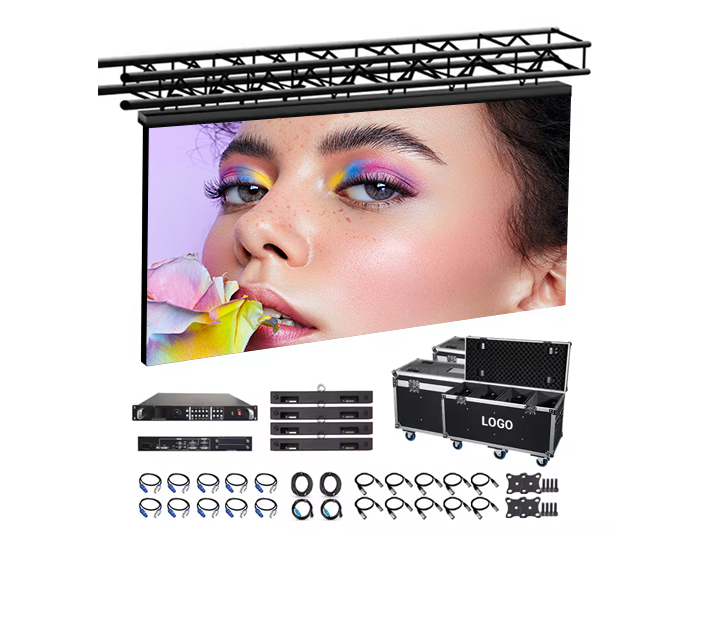
Product name: Rental LED Display /Stage LED Screen / LED Video wall Ap...
View Details →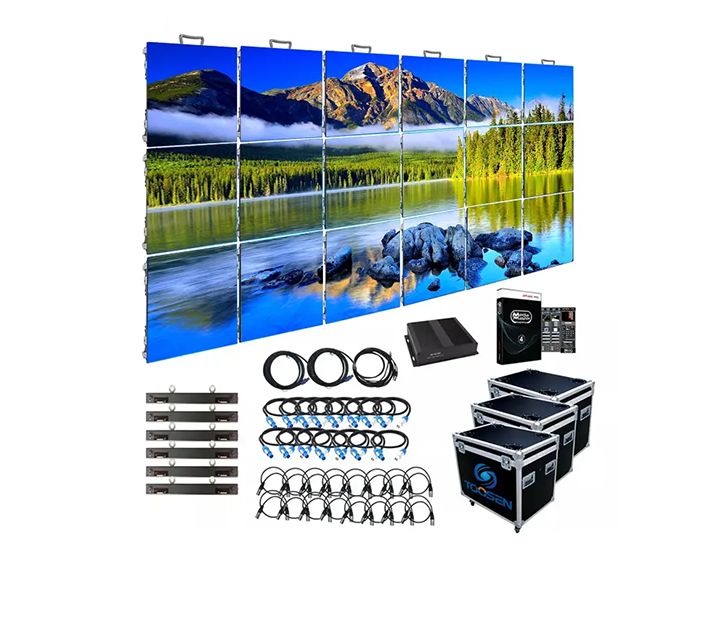
Product name: Rental LED Display /Stage LED Screen / LED Video wall Ap...
View Details →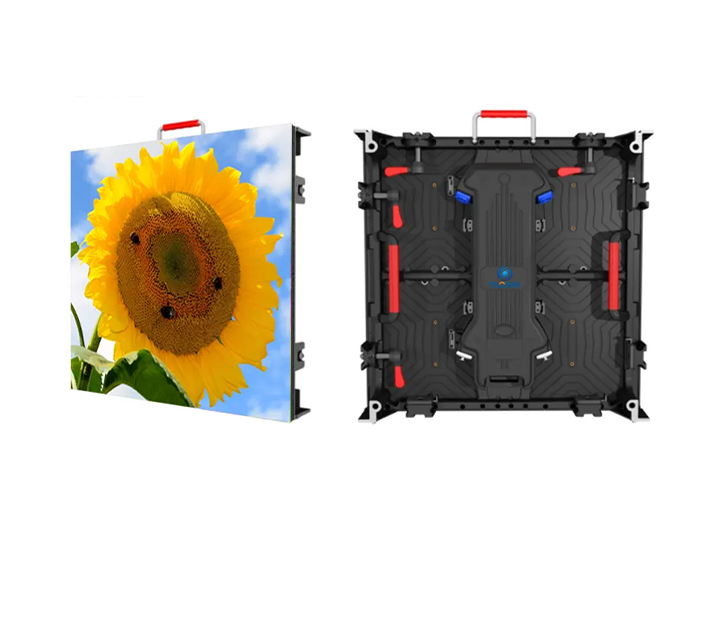
Product name: Rental LED Display /Stage LED Screen / LED Video wall Ap...
View Details →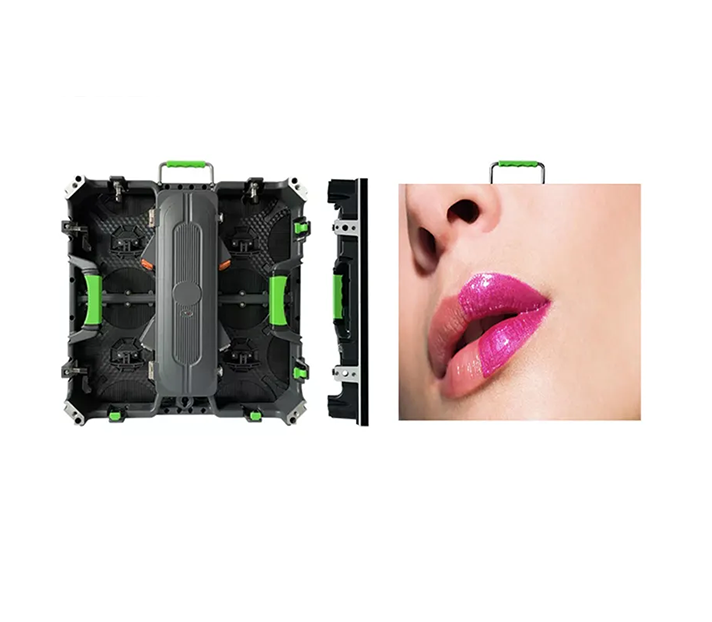
Product name: Rental LED Display /Stage LED Screen / LED Video wall Ap...
View Details →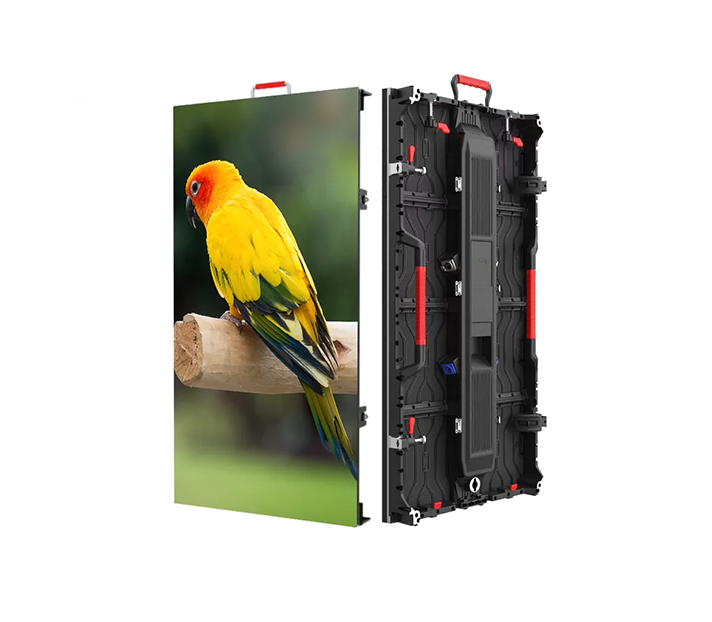
Product name: Rental LED Display /Stage LED Screen / LED Video wall Ap...
View Details →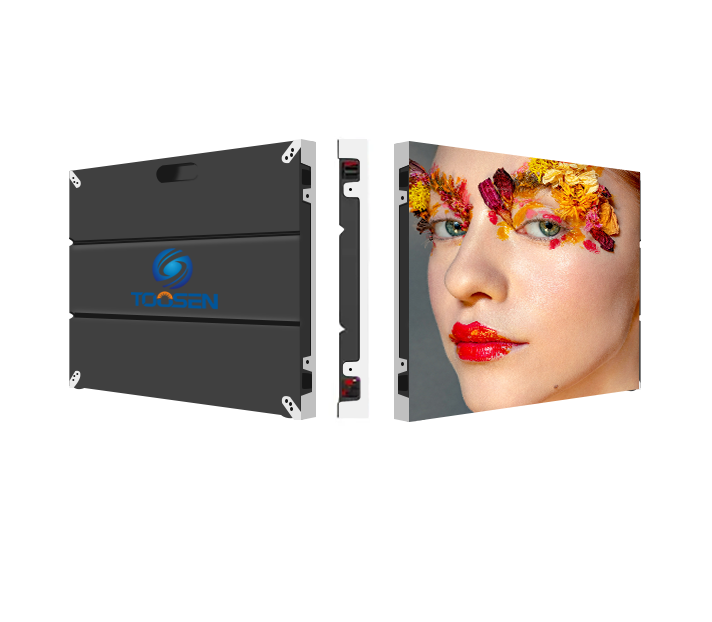
Product name: COB LED screen / Small pitch LED Display/ Fine Pitch LED...
View Details →
Product name: COB LED screen / Small pitch LED Display/ Fine Pitch LED...
View Details →Interactive floor LED displays with integrated motion sensors are transforming retail spaces and entertainment venues. T...
The display industry is witnessing a technological battle between Mini LED and Micro LED technologies. Mini LED, with ch...
A new generation of outdoor LED displays has achieved brightness levels exceeding 12,000 nits while maintaining energy e...
It is a professional LED screen solution built with high-quality lamp beads, driver ICs and cabinets, designed for stable, high-brightness and color-accurate visual presentation.
Pixel pitch depends on viewing distance. Close viewing (under 3m) usually needs P1.2-P2.5 fine pitch, while outdoor and long-distance scenarios commonly use P3.9-P10.
Yes. As a source factory we support custom cabinet size, shape, resolution, logo and packaging, with full OEM / ODM capability and bulk production capacity.
Standard products carry a multi-year warranty, with spares and remote technical support. Stock items ship quickly while custom orders are confirmed per project schedule.
Send us your project requirements and our engineering team will reply with a tailored quotation within 12 hours.
Get a Free Quote