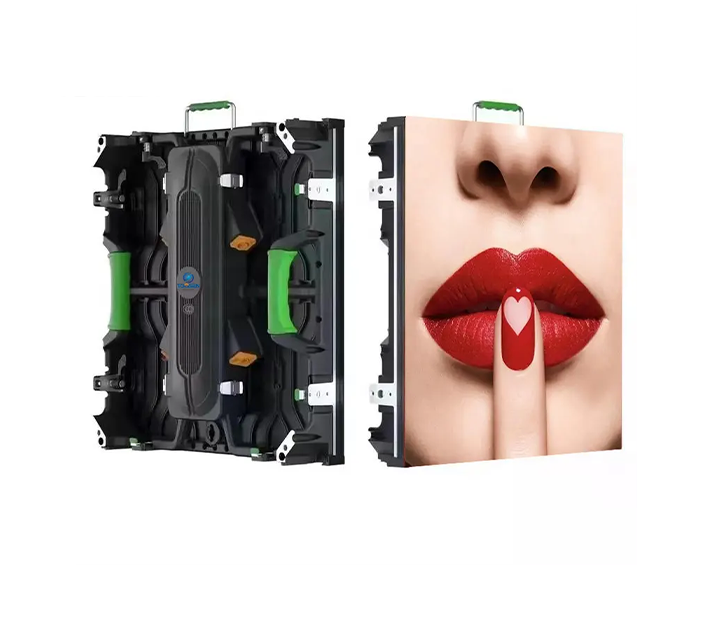
P1.953 Rental LED Display
Product name: Rental LED Display /Stage LED Screen / LED Video wall Ap...
View Details →Imagine this: You design a stunning, high-budget video for your new 3D Rubik’s Cube LED display. On your computer monitor, the footage plays flawlessly. But the moment you output the signal to the actual cube screen, cat...
Imagine this: You design a stunning, high-budget video for your new 3D Rubik’s Cube LED display. On your computer monitor, the footage plays flawlessly. But the moment you output the signal to the actual cube screen, catastrophe strikes. The video stutters, lags, and suddenly, the screen goes completely black.
Because a
uses six interconnected faces, its data routing and power distribution are incredibly complex. When your computer behaves but the big screen glitches, you are likely dealing with a bottleneck in signal transmission, data processing, or power supply.
Fortunately, you can fix this. Follow this step-by-step troubleshooting guide to get your 3D display running smoothly again.
The Problem:
People often forget that a Rubik’s Cube display requires a unique layout. To map video onto six squares, software often stitches the footage into one massive, unusually shaped canvas. If your video resolution or bitrate is too high, your media player will struggle to decode the file. This creates a bottleneck at the sending card, which drops frames and causes severe lagging.
The Solution:
First, compress your video. Convert your footage into a highly efficient format like MP4 (H.264 or H.265) and lower the bitrate.
Next, open your computer’s graphics card settings. Ensure that both your primary monitor and the LED sending card share the exact same refresh rate (typically 60Hz)
The Problem:
Standard LED control systems (like NovaStar or Colorlight) have limits. A single Gigabit Ethernet cable can only carry about 650,000 pixels at 60Hz . Because a Rubik’s Cube screen has six sides, your total pixel count can easily push this limit. When you play a fast-moving, colorful video, the data surge overloads the cable, resulting in dropped packets, lag, and sudden blackouts.
The Solution:
Open your LED configuration software and check the “Screen Connection” map. Calculate the exact pixel load on each cable.
If you are nearing the limit, split the load . Run two or four separate network cables from the sending card to different faces of the cube.
Always upgrade to high-quality, pure copper Cat6 cables to guarantee a stable data flow.
The Problem:
To power a closed, six-sided cube, engineers must daisy-chain the internal receiving cards together using short network cables. If you chain too many cards together, the signal degrades as it travels around the loop. Furthermore, if a single loose ribbon cable or network port glitches on side three, every single face down the line will start stuttering or drop to black.
The Solution:
Pop open the cube access panel and inspect the internal cables. Firmly reseat every network plug and ribbon connector.
To permanently fix signal degradation, reduce the chain length. Instead of running one long wire through all six faces, run multiple main lines directly from the controller to individual sections.
The Problem:
Does your screen only go black during bright, white, or highly dynamic scenes? If so, you have a power problem, not a software bug. White screens demand maximum electrical current. If your internal switching power supplies are aging or underpowered, a bright flash will trigger their over-current protection, causing the screen to instantly black out. Once the video switches to a darker scene, the power resets, and the screen pops back on.
The Solution:
Run a diagnostic test by playing a solid black video, followed by a solid white video. If the white screen triggers an immediate blackout, your power supplies are failing.
Grab a multimeter and measure the voltage at the LED modules during a heavy visual load. If the voltage drops below 4.5V (it should sit around 5V), you need to replace the faulty power supply units.
The Problem:
Just because a video looks smooth on your desktop doesn’t mean your graphics card is sending a clean signal to the LED sending card. Driver conflicts or incorrect hardware acceleration settings can cause the media player to output an incredibly low frame rate to your external display.
The Solution:
Update your computer’s graphics card drivers to the latest version.
Open your LED playback software settings and experiment with the
toggle. Turn it off if it is on, or vice versa, to see if the playback stabilizes.
If the entire cube goes black simultaneously:
Focus your attention on the main sending card, the primary network cable, or the main power breaker.
If only one or two faces lag or go black:
The issue lies inside the cube. Inspect the receiving cards, internal jump cables, or local power supplies for those specific faces.
Product name: Rental LED Display /Stage LED Screen / LED Video wall Ap...
View Details →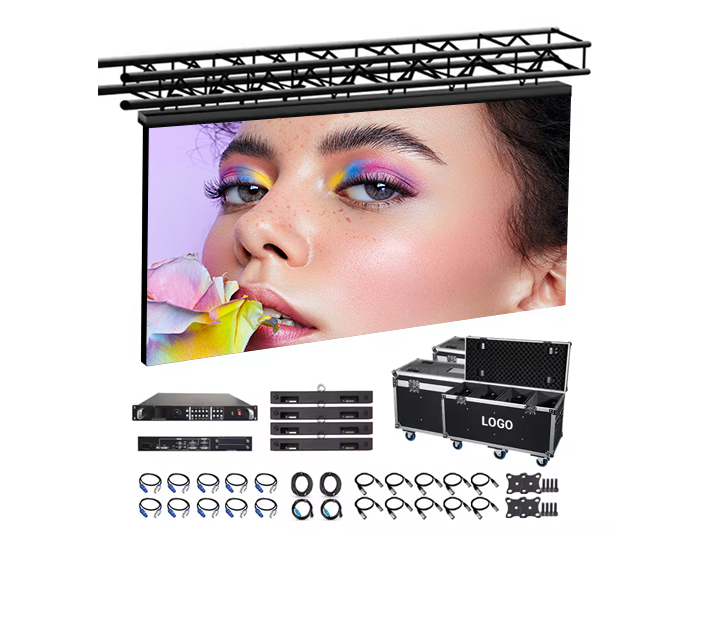
Product name: Rental LED Display /Stage LED Screen / LED Video wall Ap...
View Details →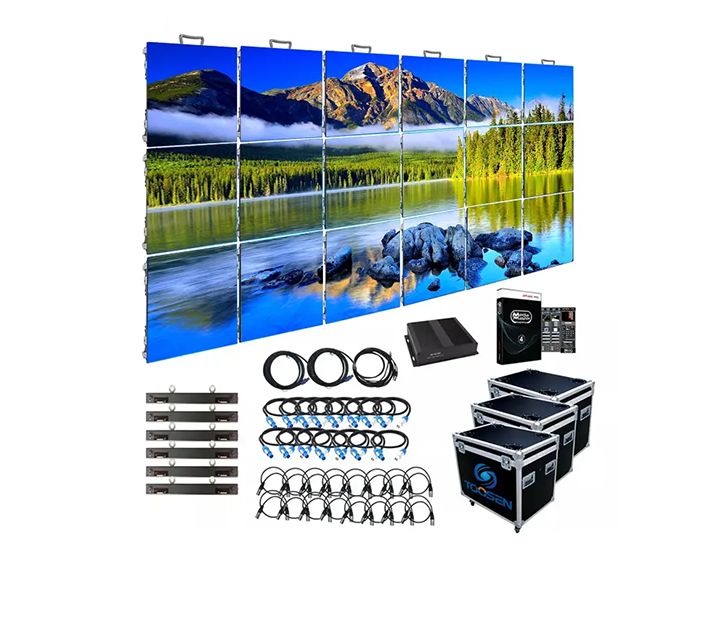
Product name: Rental LED Display /Stage LED Screen / LED Video wall Ap...
View Details →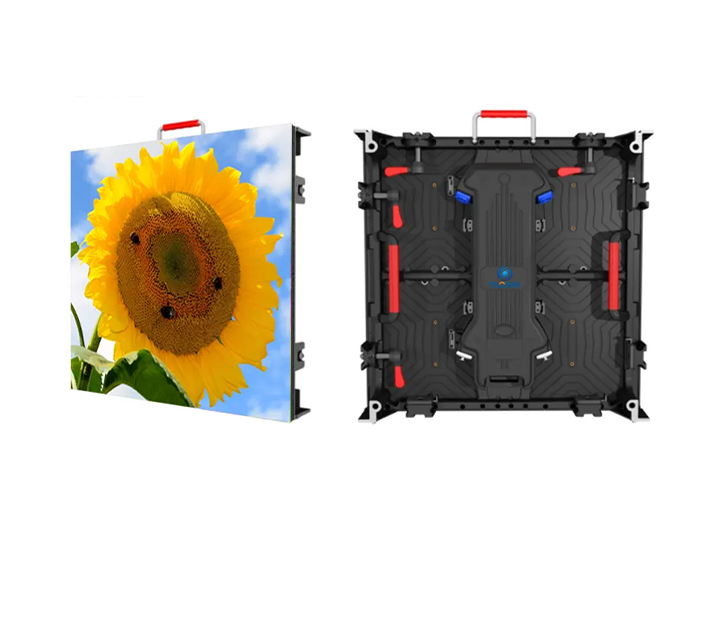
Product name: Rental LED Display /Stage LED Screen / LED Video wall Ap...
View Details →
Product name: Rental LED Display /Stage LED Screen / LED Video wall Ap...
View Details →
Product name: Rental LED Display /Stage LED Screen / LED Video wall Ap...
View Details →
Product name: COB LED screen / Small pitch LED Display/ Fine Pitch LED...
View Details →
Product name: COB LED screen / Small pitch LED Display/ Fine Pitch LED...
View Details →Leading manufacturers have unveiled their latest COB (Chip-on-Board) LED display panels featuring pixel pitches as low a...
Major sports venues worldwide are upgrading to next-generation LED ribbon displays with improved viewing angles and fast...
A new generation of outdoor LED displays has achieved brightness levels exceeding 12,000 nits while maintaining energy e...
It is a professional LED screen solution built with high-quality lamp beads, driver ICs and cabinets, designed for stable, high-brightness and color-accurate visual presentation.
Pixel pitch depends on viewing distance. Close viewing (under 3m) usually needs P1.2-P2.5 fine pitch, while outdoor and long-distance scenarios commonly use P3.9-P10.
Yes. As a source factory we support custom cabinet size, shape, resolution, logo and packaging, with full OEM / ODM capability and bulk production capacity.
Standard products carry a multi-year warranty, with spares and remote technical support. Stock items ship quickly while custom orders are confirmed per project schedule.
Send us your project requirements and our engineering team will reply with a tailored quotation within 12 hours.
Get a Free Quote