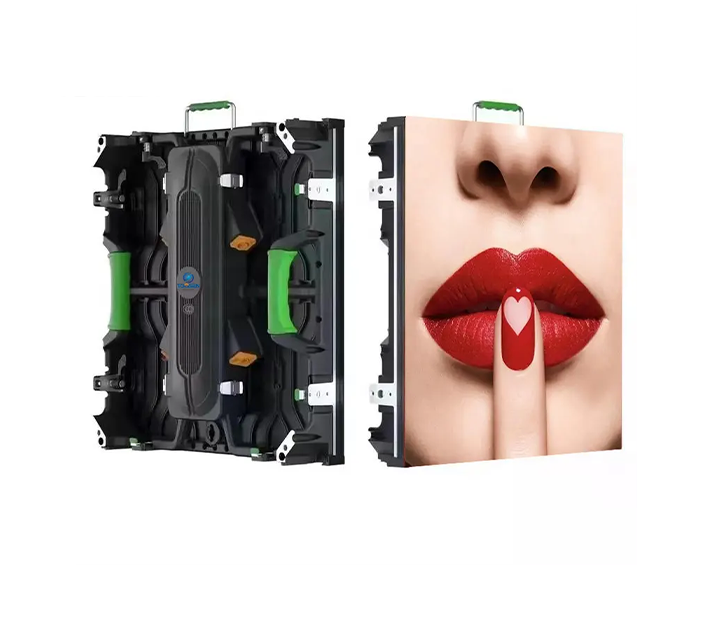
P1.953 Rental LED Display
Product name: Rental LED Display /Stage LED Screen / LED Video wall Ap...
View Details →Understanding the P1.53 LED Display and Common Failure Points The P1.53 LED display, characterized by its 1.53 mm pixel pitch, is a high-resolution solution designed for close-range viewing applications such as control r...
The P1.53 LED display, characterized by its 1.53 mm pixel pitch, is a high-resolution solution designed for close-range viewing applications such as control rooms, broadcast studios, and luxury retail environments. With a typical resolution of 160 x 90 pixels per cabinet and a recommended viewing distance of approximately 2.5 meters, this fine-pitch technology demands precise maintenance. Common issues include dead pixels, color non-uniformity, flicker, power failures, and data transmission errors. The following guide provides systematic troubleshooting steps for technicians working with P1.53 modules, which often operate at brightness levels of 600 to 1000 nits and refresh rates of 1920 Hz or higher. Understanding the IP rating (typically IP20 for indoor use) is critical, as moisture or dust ingress can cause permanent damage. Always disconnect power before handling any components.
One of the most frequent causes of display failure is an unstable power supply. P1.53 cabinets typically draw between 150 and 250 watts per square meter at peak brightness. If a section of the display remains dark or flickers, check the AC input voltage first. Use a multimeter to verify that the power supply unit (PSU) is outputting the correct DC voltage, usually 4.5V to 5V for LED modules. A faulty PSU can cause entire rows of cabinets to shut down. Examine the power cables and connectors for burns, loose connections, or corrosion. For intermittent failures, measure the voltage drop across long cable runs. If the voltage at the module end is below 4.2V, increase the cable gauge or add supplementary power injection points. Additionally, verify that the total power draw does not exceed the circuit breaker rating. A single 20A circuit at 110V can support roughly 10 to 12 P1.53 cabinets at full brightness. Use a power sequencer to avoid inrush current spikes during startup, which can trip breakers or damage the PSU.
Data transmission errors manifest as scrambled images, partial content, or complete black screens. The P1.53 display relies on a daisy-chain signal path from the sending card to the receiving cards inside each cabinet. Begin by inspecting the Ethernet or fiber optic cables. A damaged cable or loose RJ45 connector can break the signal chain. Use a cable tester to confirm continuity. If one cabinet displays correctly but the next does not, replace the cable between them. Check the receiving card’s LED status indicators: a solid green light typically indicates normal operation, while a blinking red light signals a data error. Ensure that the sending card’s resolution settings match the total panel resolution. For example, a 2x2 array of 192x192 pixel cabinets requires a sending card configured for 384x384 pixels. If the refresh rate is set too high for the cable length, signal degradation may occur. Standard CAT5e cables support up to 100 meters for 1920 Hz refresh, but longer runs may require fiber optic converters. For persistent flicker, reduce the refresh rate to 1920 Hz or lower and verify that the scanning mode (typically 1/32 or 1/16 for P1.53) matches the module specifications.
Dead or stuck pixels are a common concern in fine-pitch displays. A single dead pixel in a P1.53 panel is visible from 2 meters and detracts from image quality. To troubleshoot, first identify whether the pixel is completely off (dead) or constantly lit (stuck). Stuck pixels may be revived by gently pressing the area around the pixel with a soft cloth while the display is powered on, but this method carries a risk of damaging the LED. For dead pixels, the issue is usually a failed LED chip or a broken solder joint. Replace the entire module if more than three dead pixels appear in a single cabinet. Color uniformity problems, such as color casts or uneven brightness, often stem from incorrect calibration. Use the manufacturer’s calibration software to perform a full white balance adjustment. Ensure that the brightness is set to a consistent level across all cabinets, typically between 600 and 800 nits for indoor use. If one cabinet appears dimmer, measure its brightness with a luminance meter and adjust the gain settings in the receiving card. For persistent color shifts, check the RGB current limits in the driver IC settings. Overdriving the red channel, for example, can cause premature failure and color drift.
P1.53 displays generate significant heat due to their high pixel density and power consumption. Operating temperatures above 50 degrees Celsius can reduce LED lifespan and cause color shift. Ensure that the installation location has adequate ventilation. The IP20 rating means the display is not sealed against dust, so internal fans or air conditioning are necessary for long-term reliability. Check that the cabinet’s cooling fans are spinning freely and that air intake vents are not blocked. If the display is mounted in a recessed wall, install a ventilation gap of at least 10 centimeters behind the cabinets. Use an infrared thermometer to measure the temperature of the PSU and receiving cards. If any component exceeds 70 degrees Celsius, reduce the brightness level or improve airflow. Humidity is another critical factor; indoor fine-pitch displays should be kept in environments with 20% to 80% relative humidity. Condensation can short-circuit the module’s PCB. If the display has been exposed to moisture, power it off immediately and allow it to dry for 48 hours in a dehumidified room before attempting to operate it again.
To minimize downtime, implement a regular maintenance schedule for your P1.55 LED display. Perform a visual inspection every month, checking for dead pixels, loose cables, and signs of corrosion. Clean the display surface with a soft, anti-static brush or a specialized LED screen cleaner. Do not use water or chemical solvents, as they can damage the protective coating on the LEDs. Test the power supply voltages and data signal integrity quarterly. Keep a stock of spare modules, receiving cards, and PSUs to facilitate rapid replacement. For mission-critical applications, consider a redundant power configuration where each cabinet has a backup PSU. Monitor the display’s power draw over time; a gradual increase may indicate failing components. Document all troubleshooting steps and firmware updates. By adhering to these guidelines, you can extend the operational life of your P1.53 display beyond 100,000 hours and maintain consistent image quality at close viewing distances.
Product name: Rental LED Display /Stage LED Screen / LED Video wall Ap...
View Details →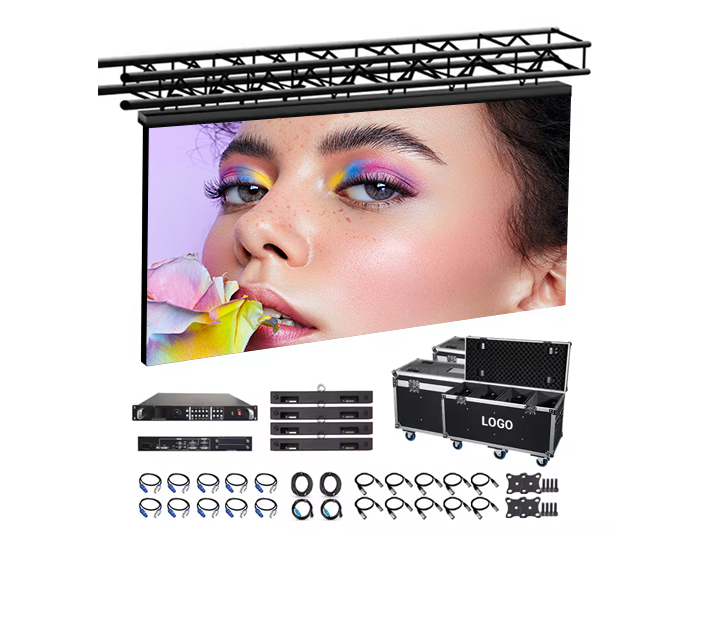
Product name: Rental LED Display /Stage LED Screen / LED Video wall Ap...
View Details →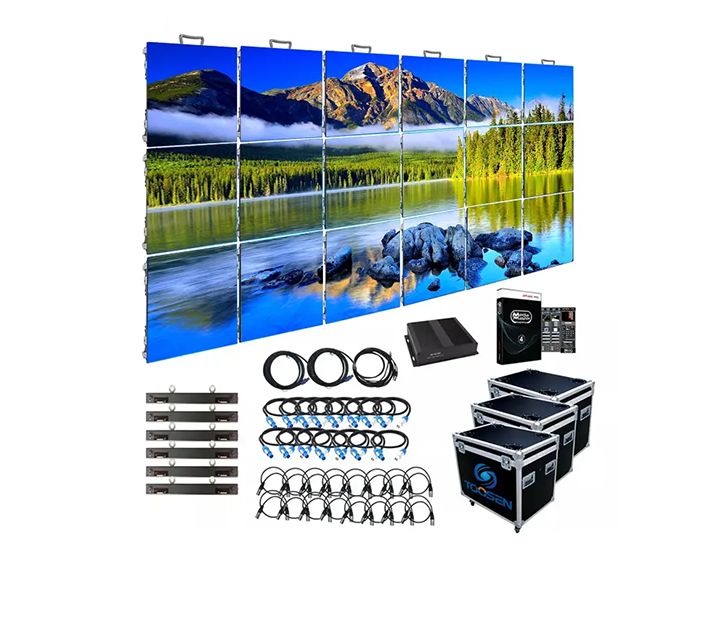
Product name: Rental LED Display /Stage LED Screen / LED Video wall Ap...
View Details →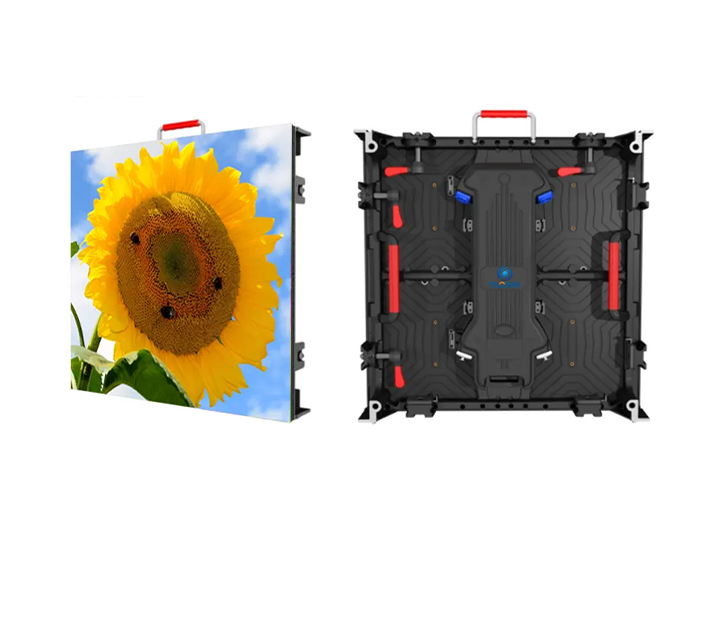
Product name: Rental LED Display /Stage LED Screen / LED Video wall Ap...
View Details →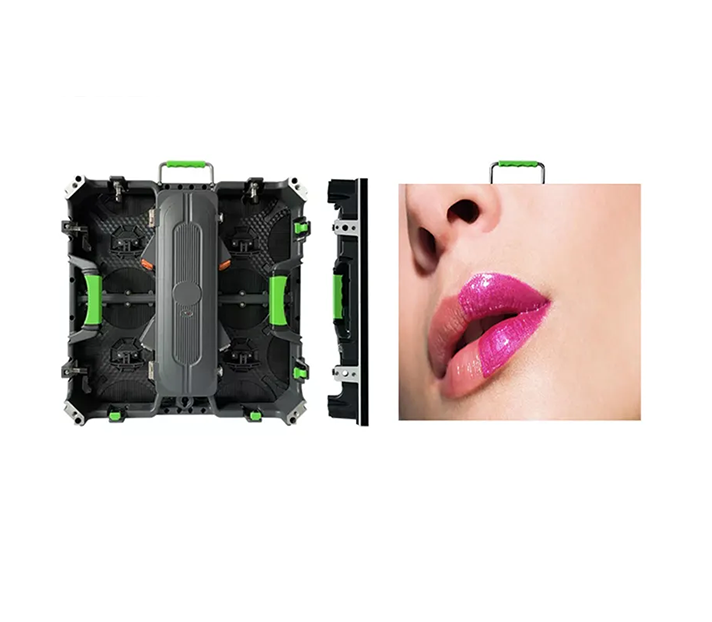
Product name: Rental LED Display /Stage LED Screen / LED Video wall Ap...
View Details →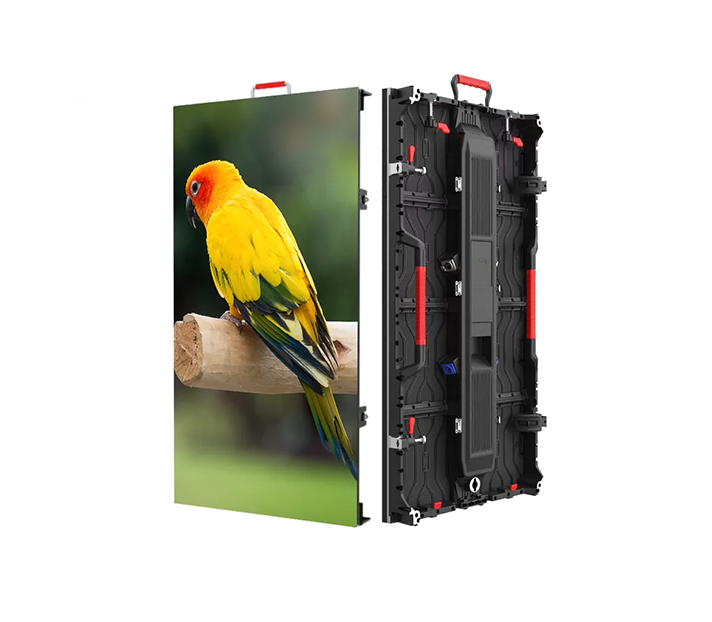
Product name: Rental LED Display /Stage LED Screen / LED Video wall Ap...
View Details →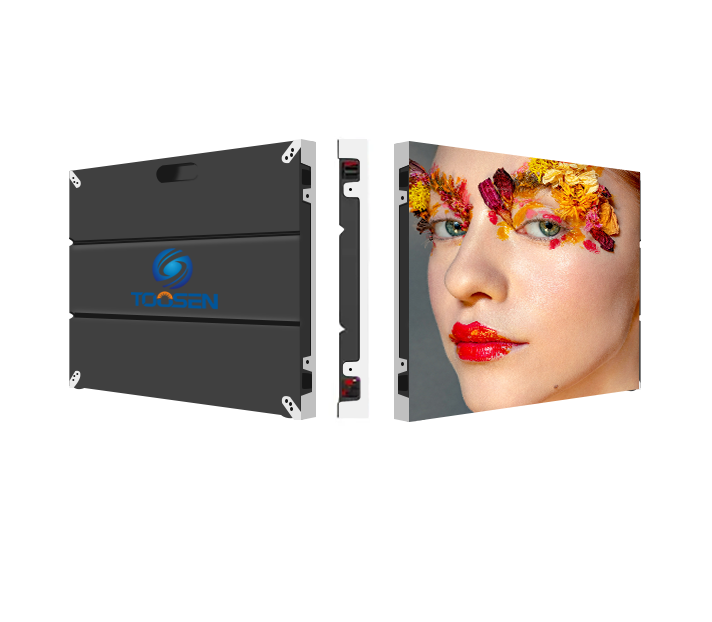
Product name: COB LED screen / Small pitch LED Display/ Fine Pitch LED...
View Details →
Product name: COB LED screen / Small pitch LED Display/ Fine Pitch LED...
View Details →Major sports venues worldwide are upgrading to next-generation LED ribbon displays with improved viewing angles and fast...
Leading LED display manufacturers are embracing sustainability with eco-friendly manufacturing processes, recyclable mat...
The film and television industry is rapidly adopting LED volume stages for virtual production, following the success of ...
It is a professional LED screen solution built with high-quality lamp beads, driver ICs and cabinets, designed for stable, high-brightness and color-accurate visual presentation.
Pixel pitch depends on viewing distance. Close viewing (under 3m) usually needs P1.2-P2.5 fine pitch, while outdoor and long-distance scenarios commonly use P3.9-P10.
Yes. As a source factory we support custom cabinet size, shape, resolution, logo and packaging, with full OEM / ODM capability and bulk production capacity.
Standard products carry a multi-year warranty, with spares and remote technical support. Stock items ship quickly while custom orders are confirmed per project schedule.
Send us your project requirements and our engineering team will reply with a tailored quotation within 12 hours.
Get a Free Quote